Actions with tasks
In this article, we’ll cover additional actions you can take with tasks to help you manage and track their execution.
We'll explain:
Within the task table, there is a column Actions that contains icons for performing various operations on a task.


Click on the icon  , and a task execution chart will open. The chart helps you track how the task was planned, how the system is executing it, and how the driver is actually performing it.
, and a task execution chart will open. The chart helps you track how the task was planned, how the system is executing it, and how the driver is actually performing it.
Click on the icon  to open the waybill with detailed route information. The waybill is a detailed report that shows how the vehicle traveled the route. It allows you to track the actual execution of the task by comparing the planned and actual data.
to open the waybill with detailed route information. The waybill is a detailed report that shows how the vehicle traveled the route. It allows you to track the actual execution of the task by comparing the planned and actual data.
Key elements of the waybill
At the top, you’ll see the task parameters such as:
-
Task ID — the unique number of the task in the system.
-
Date and Time — when the task was created.
-
Execution Status — the current status of the task.
In the center of the screen is a table of route points. Each row represents a specific route point (address).
Key columns in the waybill table:
-
Actions — this column contains icons for working with route points, for example:
 Mark entry into a geofence
 Mark entry into a geofence (without location check)
 Mark exit from a geofence
 Change the working radius of the geofence — click the point to specify a new radius
 Change location and radius of geofence on the map marker — move the marker on the map and save the changes
 Save changes — fix the changes to the marker
 -
Address — full address of each route point
-
Type — type of point (e.g., loading, unloading, intermediate point)
-
Actual distance and time — the actual distance the vehicle traveled and the real travel time
-
Planned values — the scheduled time and distance for the route point
You can customize the columns of the waybill table as needed. To adjust the columns:
1. Click on the arrow  in the column header to open the column settings menu, where you can:
in the column header to open the column settings menu, where you can:-
Sort the data in ascending or descending order
-
Select which columns to display in the table2. To choose which columns to display:
-
Click Columns — a list of available parameters for display will open
-
Check the boxes next to the parameters you want to see

On the right side of the waybill, a map of the route will be displayed:

-
Route points are numbered
-
The red dashed line shows the planned route on the map
-
The green line shows the actual route
-
The current or last recorded location of the vehicle is marked
Map tools
You can use the following tools to interact with the map:
Zooming In/Out
To zoom in or out on the map, you have several options:
1. Use the buttons on the map tool panel:  and
and 
and 2. Scroll the mouse wheel: scrolling away from you zooms in, toward you zooms out. The cursor will indicate which area you're focusing on
3. Double-click anywhere on the map to zoom in directly
Measuring distance between points
This tool  helps calculate the distance between two points on the map.
helps calculate the distance between two points on the map.To use it:
1. Click on the map to mark the first point
2. Click again to mark the second point
3. A line will appear between the points, showing the distance
To measure multiple segments, keep clicking to add new points. The length of each segment will be displayed next to it.

Measuring area
This tool  helps calculate the area of a selected region on the map.
helps calculate the area of a selected region on the map.To use it:
1. Click on the map to mark the corners of the shape you want to measure
2. When you finish drawing the shape, the system will automatically calculate and display the area

Printing the map
You can print the current view of the map. When you click the print button  , you’ll be given four orientation options:
, you’ll be given four orientation options:1. Landscape — Prints the map in horizontal orientation, suitable for wide areas
2. Portrait — Prints the map in vertical orientation, suitable for vertically stretched areas
3. Auto — The system automatically selects the optimal print orientation based on the current map view and proportions
4. Custom — Choose this option if you want to print only a specific area of the map. Select the area using your mouse, and it will be sent to print
Viewing traffic
The traffic feature shows real-time road congestion with color coding:
-
Green — free-flowing traffic
-
Yellow — moderate congestion
-
Red — heavy traffic
To enable traffic display, check the option in the top-right corner of the map.
Choosing map type
You can choose from several types of maps to display the area in the PTM interface. The map type is the base layer used for visualizing spatial data. To change the map, click the map selection button  .
.
.
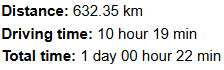
At the bottom of the map, you’ll see the route parameters to help you track its progress:
-
Distance — Total distance traveled along the route (e.g., 36.59 km)
-
Travel Time — The actual time spent traveling, excluding stops
-
Total Time — The total time spent on the route, including both travel time and stops

Route player
At the bottom of the Trip Sheet window, there is a Route Player that shows the vehicle's movement along the route in real-time.

Click the Play button ▶ to start playing the route. The vehicle icon will move along the track from start to finish.
The timeline below the player shows the entire route interval. You can drag the slider to manually jump to any moment on the route and see the exact vehicle location on the map.
Below the timeline, you’ll see:
-
Date and Time (e.g., 14.08.2025, 15:55) — the moment corresponding to the current position of the slider
-
Speed (e.g., 6 km/h) — the vehicle’s speed at that point in the route
Additional Player Features:
-
Tracking
 — if you check the icon next to the eye, you will follow the vehicle on the map while the route is being played
 -
Speed control
 — use the slider on the right to speed up or slow down the playback of the route
Click on the icon  to start the recalculation of all task parameters based on the latest data. You can use task recalculation if you’ve received new data from the tracker or if the task settings have changed and need to be updated without manually editing them.
to start the recalculation of all task parameters based on the latest data. You can use task recalculation if you’ve received new data from the tracker or if the task settings have changed and need to be updated without manually editing them.When recalculating:
-
The system will adjust the route points based on updated data
-
New settings are applied: auto statuses, auto forecasts, changes to templates, and other parameters
-
The system will recalculate the task status and points, planned and actual times, distances, and stop durations