Calendar
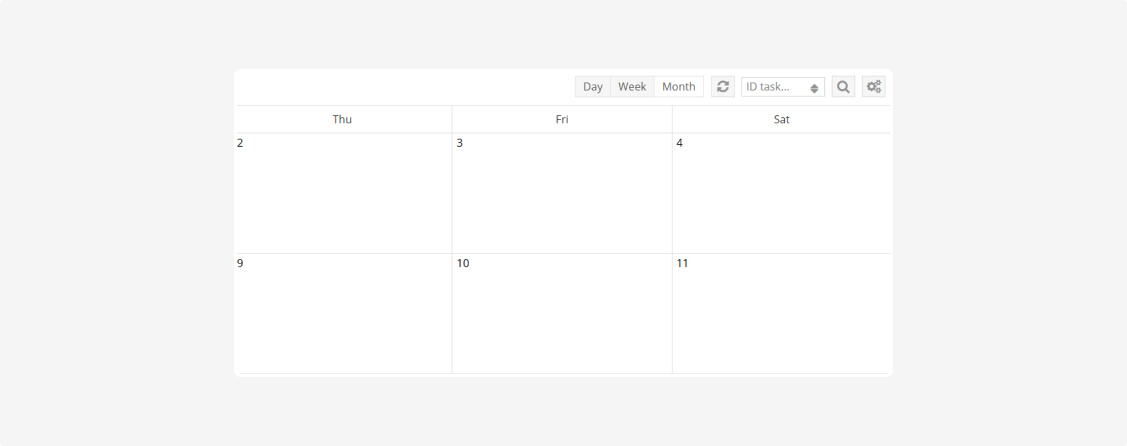
Calendar v1 displays tasks by date. It is useful for planning work, finding tasks, and quickly navigating to the required period.

Main elements
The calendar includes:
-
a list of task groups with color indicators
-
the calendar grid
-
Day, Week, and Month view modes
-
navigation to the current date
-
data refresh
-
navigation to the previous or next period
-
task search by ID
-
calendar display settings
Task numbers, such as №206611, are displayed in calendar cells.
Task groups
The list of groups is displayed on the left. Groups correspond to task types and are used as filters.
The calendar may include system task types, such as:
-
Information
-
LOGISTICS: Delivery
-
LOGISTICS: Loading
-
LOGISTICS: Unloading
User-defined task types created in the Task types dictionary are also displayed in the list.
Filtering by groups
Each group is marked with its own color. Click a group name to hide its tasks in the calendar.

The group will become faded, and its tasks will disappear from the calendar. To display the tasks again, click the group name once more. The group will become active again.
Calendar navigation
Use the following buttons:
-
 — go to the current date
-
 — open the previous or next day, week, or month
-
 — load the latest data
The view switches  change the calendar scale:
-
Day — displays tasks for one day

-
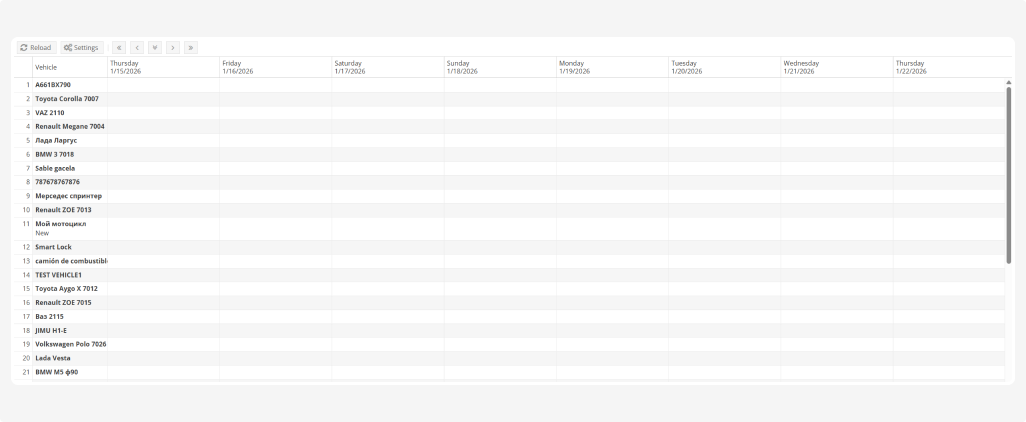
Week — displays tasks for the current week
-
Month — displays tasks for the entire month
Choose the required mode depending on how detailed the schedule needs to be.
Searching for a task
To find a task:
1. Enter its number in the ID task field

2. Click the search button  or press Enter
The calendar will display the task with the specified ID.
Display settings
The settings button  opens the Settings calendar window.
The window contains a list of available fields. Select the checkboxes for the information that should be displayed in the calendar.

For example, you can enable:
-
Name
-
Address
-
Office
-
Phone
-
Load address
-
Unloading address
-
and other fields
Click Save to apply the changes.
Creating a task from the calendar
You can create a new task directly from the calendar.
1. Navigate to the required day
2. Click an empty area in the calendar cell
3. In the opened form, fill in the required fields:

-
Template
-
Task Type
-
Address list
-
Start time
-
End time4. If necessary, specify the vehicle, driver, route, cargo, description, and other parameters5. Check the addresses and route points on the map6. Specify the number of task copies. By default, one copy is created7. Click Send
If the required fields are not completed, the Send button is unavailable.
To exit without saving, click Backwards. The entered data will not be saved.
Editing a task from the calendar
You can open a task from the calendar to review or edit its information.
1. Click the required task in the calendar
2. The task card will open

3. Review or edit the necessary parameters, such as the vehicle, driver, addresses, times, route, and other data
4. If necessary, check the route points on the map
5. Click Save
To close the task card without saving changes, click Backwards or the close icon in the upper-right corner.
The bottom of the form may also contain selectors for an act template or waybill template. Their availability depends on the task and account settings.