Handbooks
The Handbooks tab is used to create and store custom lists used in PTM.

A handbook stores recurring values in one place, allowing users to select them from lists in task cards, bids, and other objects.
For example, handbooks can store:
-
a list of drivers
-
a list of partners
-
a list of contracts
-
a list of task closure reasons
-
a list of cargo types
The tab consists of two areas:
-
Handbooks list — a list of created handbooks
-
Handbook data — records from the selected handbook
To view handbook data:
1. Select a handbook on the left
2. Its data table will appear on the right

3. View, add, or edit records in the selected handbook
Creating a handbook
1. Open the Handbooks section
2. Click Add above the handbooks list

3. Specify the general handbook information:

-
Name — the displayed name
-
Alias — the technical name of the handbook. Use Latin letters
-
Primary key — a unique record identifier
-
Foreign key — a link to another handbook, if applicable
-
Display key — the field whose value will be shown to the user
-
Parent alias — the technical name of the related parent handbook
Key and relationship parameters are intended for complex structures. If the handbook is not linked to other tables, leave the optional fields empty.
4. In the right-hand area, click Add to create a column
5. Specify the column parameters:
-
Column alias — the technical field name
-
Type — the data type
-
Is null — allow the field to remain empty
-
Is unique — prevent duplicate values
-
Formula — calculate the value automatically6. Add all required columns

7. Click Save
After saving, the handbook will appear in the list on the left.
If you are unsure which keys, columns, or data types to use, contact the support team. After the handbook structure is created, you can add records independently.
|
Adding a record
1. Select a handbook from the list on the left
2. In the Handbook data area, click Add 
3. Fill in the record fields
The fields depend on the structure of the selected handbook. For example, a vehicle handbook may contain the externalId and number fields.
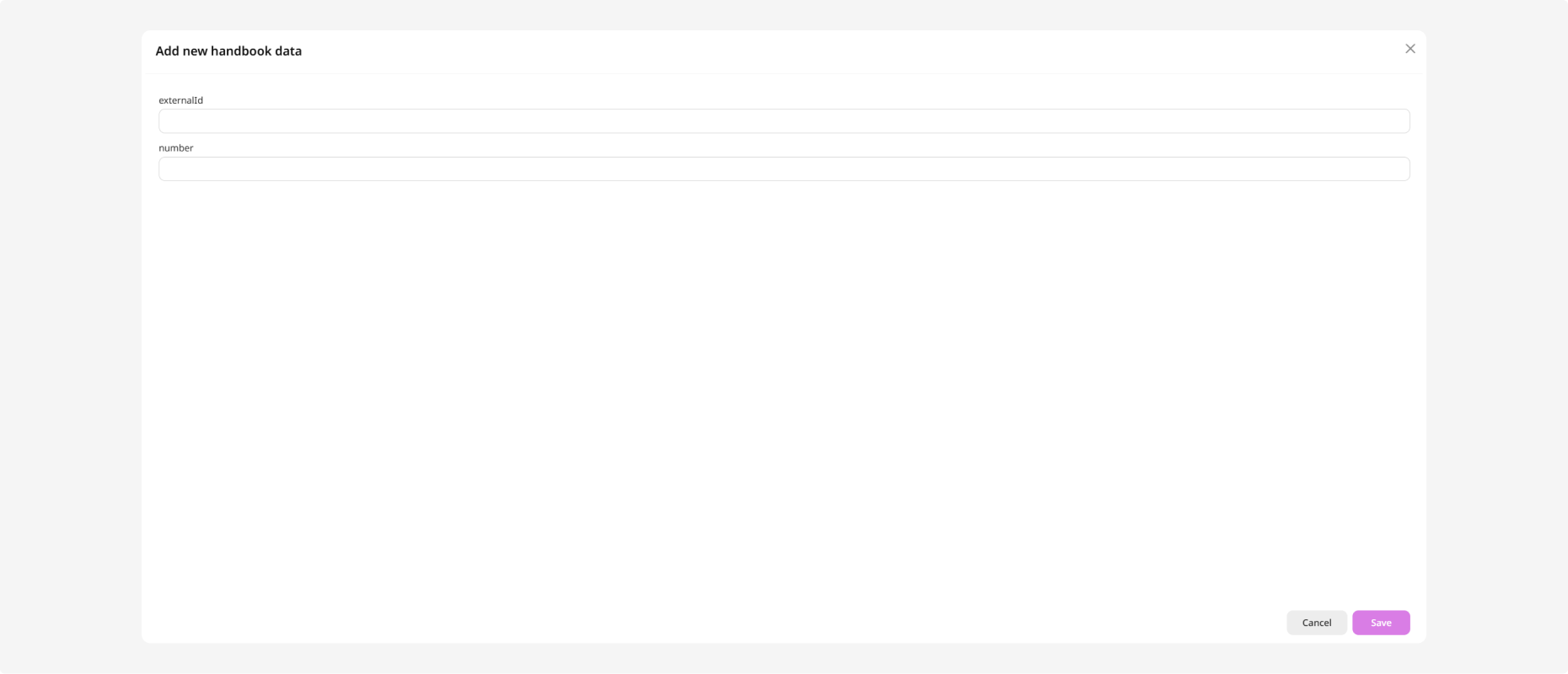
4. Click Save
The new record will appear in the table on the right.
Editing and deleting a record
To edit a record:
1. Select it in the table
2. Click Edit 
3. Modify the required values
4. Click Save
To delete a record:
1. Select it in the table
2. Click Remove 
3. Confirm the deletion
Editing or deleting a handbook
To edit the handbook structure:
1. Select the handbook in the list on the left
2. Click Edit
3. Modify the name, alias, or column parameters
4. Click Save
To delete a handbook:
1. Select it in the list
2. Click Remove
3. Confirm the deletion
Before deleting a handbook, check whether it is used in tasks, bids, or integrations.