How to enable BI Analytics access
Access to the BI Analytics API is configured at two levels:
1. Partner account level
2. User account level
To enable access, you need to:
-
Enable the Analytics Module for the partner
-
Enable the Analytics Module for the user's account
-
Add the bi_analytics = 1 configuration to the partner card
If you don't have access to the module settings or configuration on the partner account, please contact our support team.
|
1. In the admin panel, go to the Partners section

2. Double-click on the selected partner — the partner card will open
3. Go to the Modules tab and enable the Analytics module
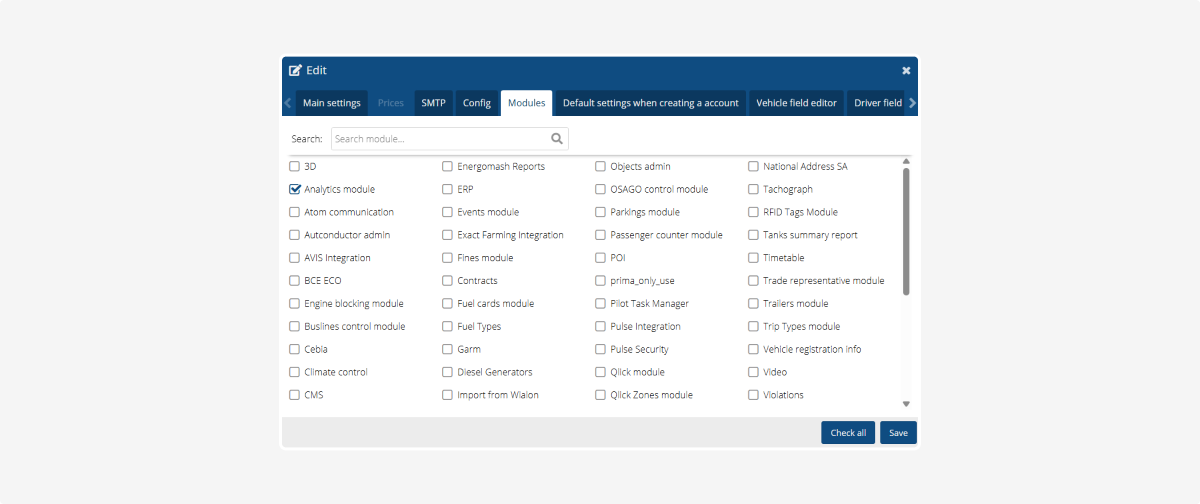
4. Next, go to the Configuration tab
5. Click the Add button

7. Save your changes
After enabling the module on the partner account, you also need to enable it for the specific user's account.
1. In the admin panel, find the required account
2. Right-click on it and select Edit

3. In the account card, go to the Modules tab
4. Enable the Analytics module
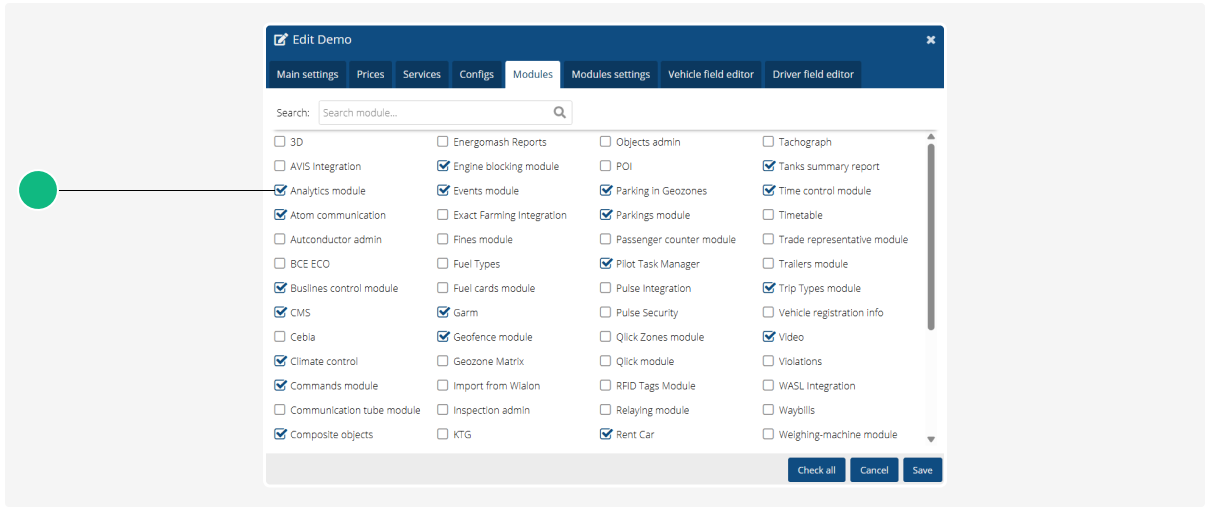
5. Save your changes
Once the Analytics module is enabled on both the partner account and the user's account, and the bi_analytics configuration is set — access to the BI Analytics API will be enabled.