Portal interface overview
After logging into LogBook, you will land on the homepage.
Let’s define the main interface elements:
-
Left panel with summary and filters
-
Top panel with section menus
Left Panel: filters and summary
1. Trip period
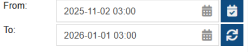
At the top of the screen, you can select the period for which you want to view trips. To do this:
-
Set the date and time using the calendar icon -
Click the Refresh button 
|
|
2. Main information
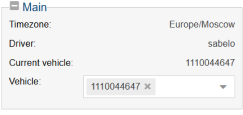
In the Main section, you’ll see the following details:
-
Timezone – the time zone in which the trip times are displayed -
Driver – the name of the driver whose data is shown -
Current vehicle – the vehicle number or ID -
Vehicle – a dropdown menu to select the relevant vehicle if multiple vehicles are assigned to you
|
|
3. Mileage summary
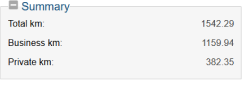
In the Summary section, the total mileage for the selected period is shown:
-
Total km – The total mileage -
Business km – The distance marked as business trips -
Private km – The distance marked as private trips
|
|
4. Toll roads
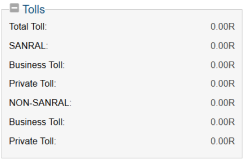
This section displays information on toll road expenses:
-
Total Toll – The total amount spent on toll roads -
SANRAL / NON-SANRAL – Categorization of toll roads by operator type (if applicable) -
Business Toll – The amount spent on toll roads for business trips -
Private Toll – The amount spent on toll roads for private trips
|
|
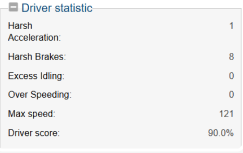
5. Driver statistics
In the Driver statistics section, data on driving style and safety is displayed:
-
Harsh Acceleration – the number of hard accelerations -
Harsh Brakes – the number of harsh braking events -
Excess Idling – long stops with the engine running -
Over Speeding – instances of exceeding the speed limit -
Max Speed – the highest recorded speed -
Driver Score – the overall score of the driver’s style: the higher the score, the more careful and economical the driving
|
|
Top panel
At the top of the screen, you’ll find the main portal
sections:
-
Trips – a list of all trips for the selected period
-
Events – individual driving events (harsh braking, speeding, etc.)
-
Fuel – data on fuel fill-ups and consumption
-
Tolls – detailed information on each toll road
-
Media – photos or videos related to trips
On the top-right of the screen, you will find:
-
Email – the current logged-in user
-
Settings – access to your account settings
-
Logout – Log out of the system.