How to add a sensor
Before adding a sensor, make sure that the device actually sends the specified parameter.
If you add a sensor with a parameter that the device does not transmit, the sensor will not work.
|
-
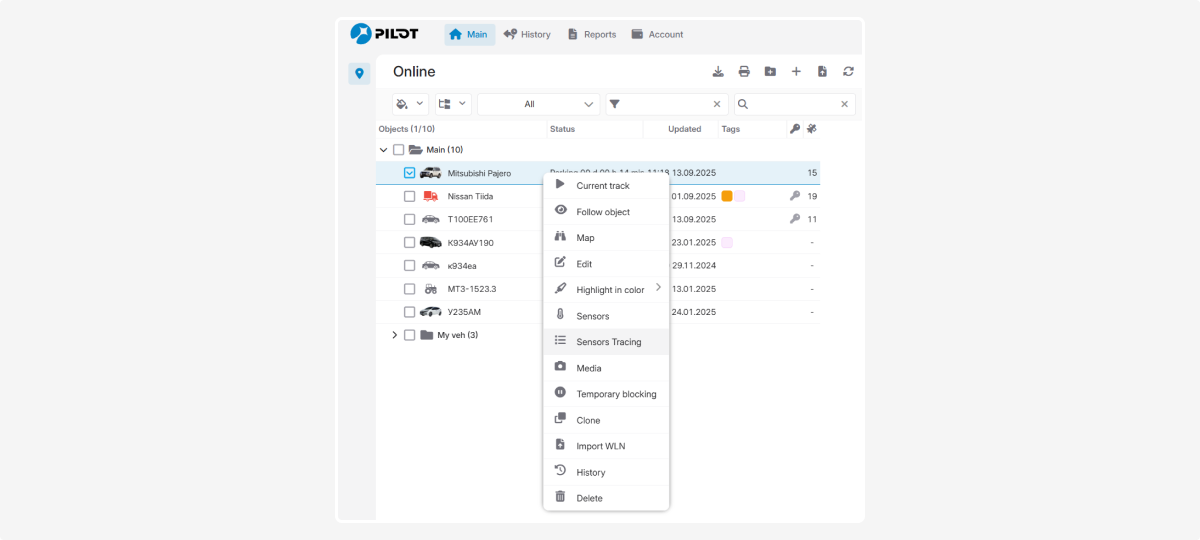
Open the object menu. To do this, right-click the object in the list
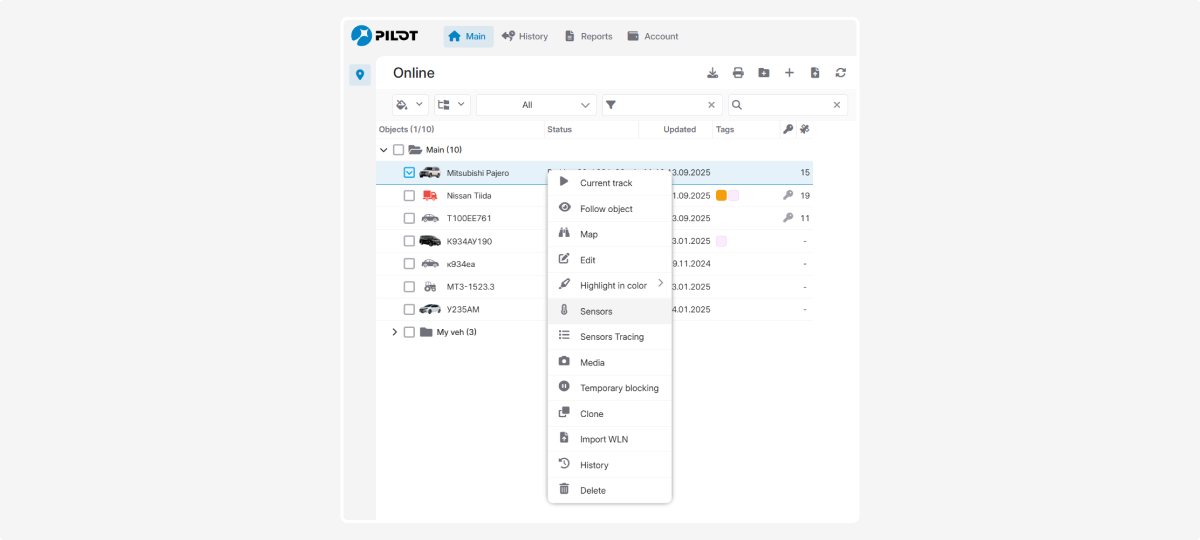
2. In the object menu, select the Sensors tab
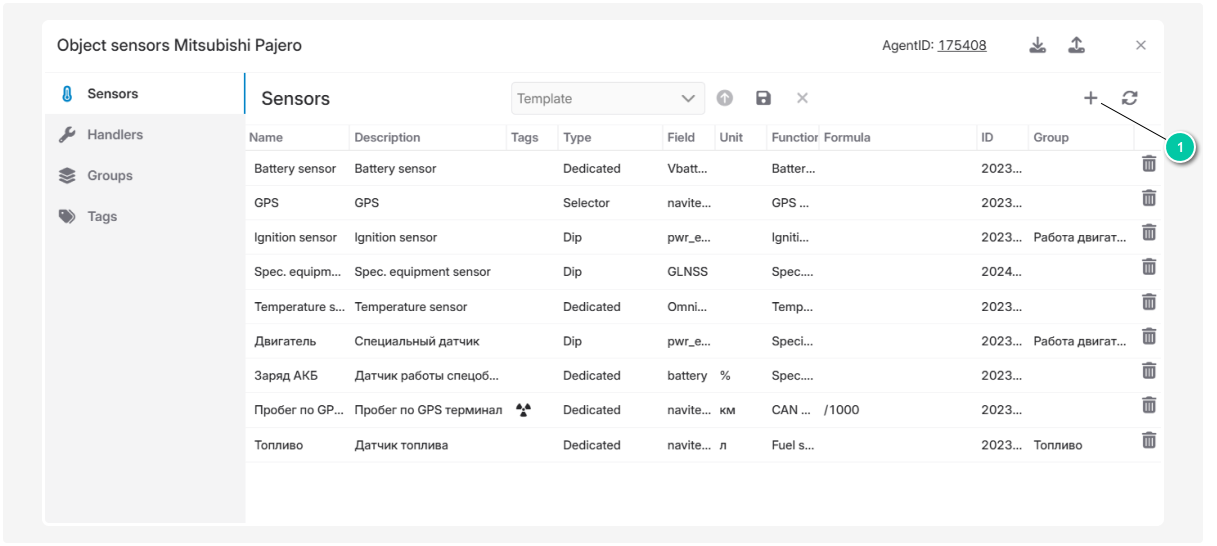
3. In the opened window, go to the Sensors tab and click the button to add a new sensor
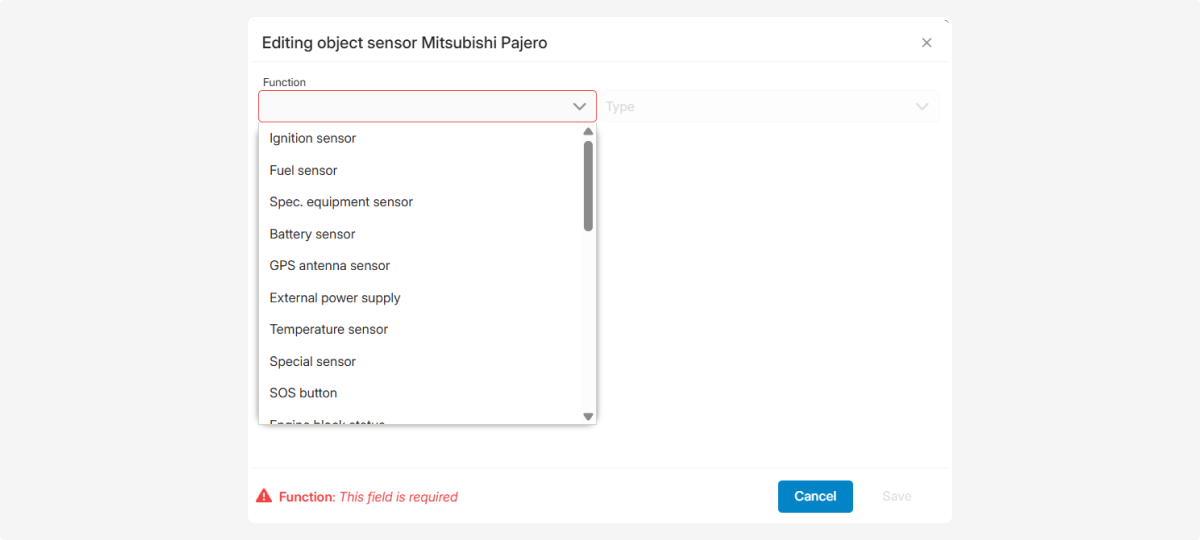
4. In the pop-up window, select the sensor type by its purpose. For example, a battery charge sensor
5. Fill in the required fields — enter the sensor name, description, and select the field where the device sends the data values. Configure other necessary parameters

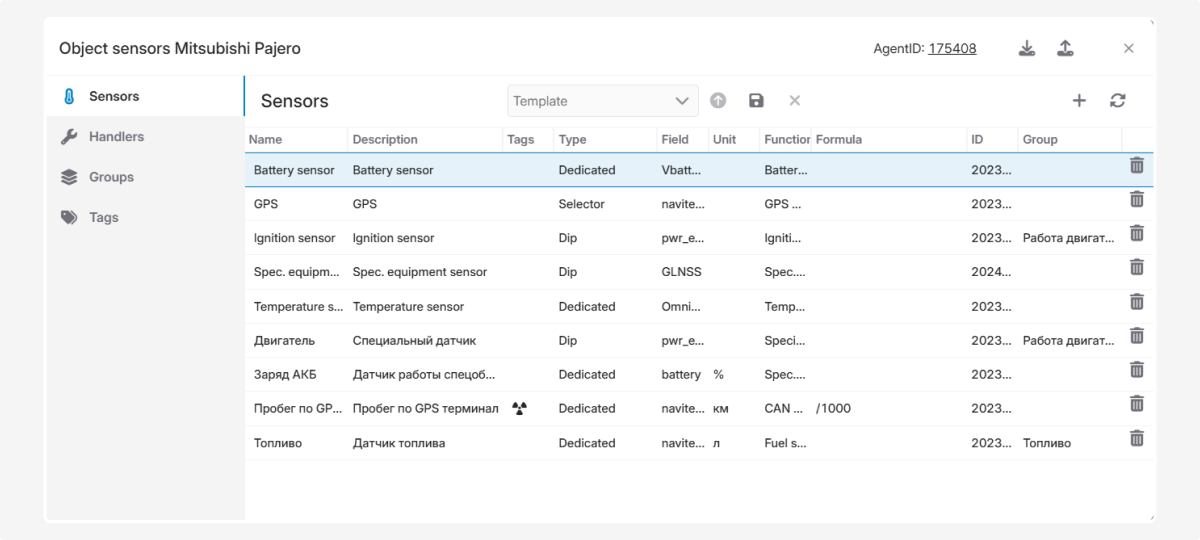
6. Click Save. Check that the sensor appears in the list of active sensors
How to check if the sensor is working properly
1. Open the object menu
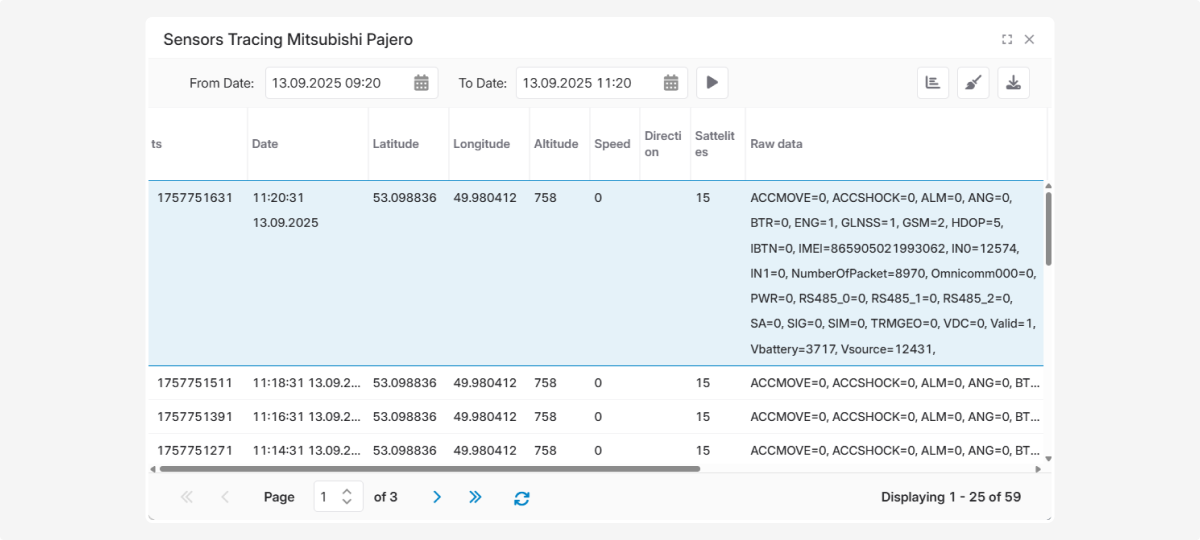
2. Go to the Sensors tracing tab
3. Here you will see the values transmitted by all sensors
Watch the video “How to add a new sensor” to quickly learn how to add and configure a new sensor in the PILOT system.
|
Sensor parameters window
When adding or editing a sensor, the sensor parameters window opens.
To open this window for editing, double-click the sensor in the list.
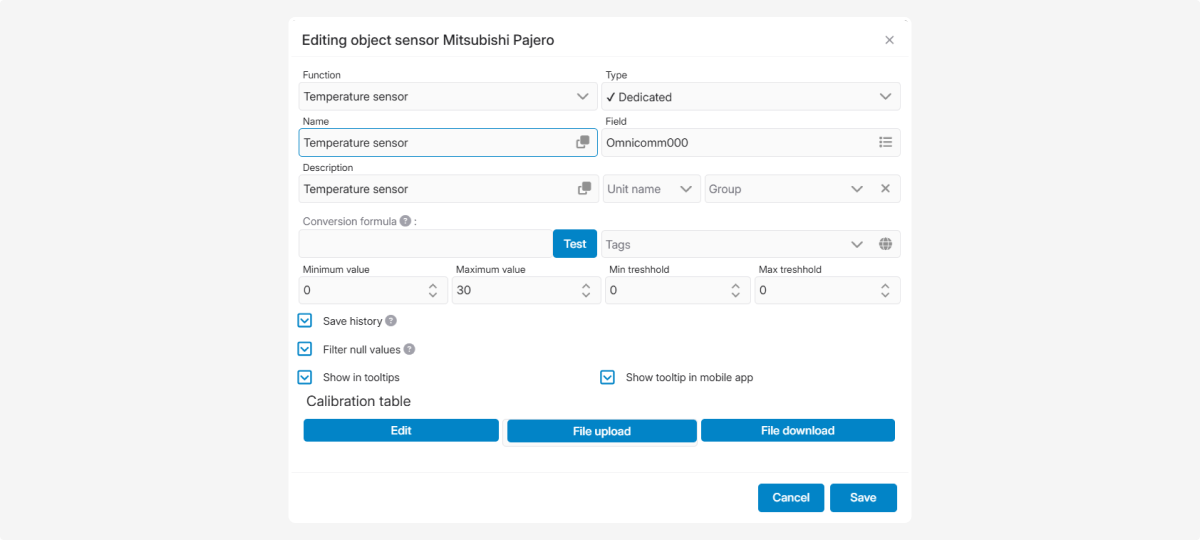
In the sensor parameters window, you fill in the following fields:
|
Field
|
Description
|
|
Function
|
Select the sensor’s purpose from the dropdown list
|
|
Type
|
The sensor type (e.g., binary, pulse, discrete). The system automatically sets the type when you choose the funcrion
|
|
Name
|
Required field. Enter the name to distinguish the sensor in the system. Use the copy-icon
 to fill in quickly. to fill in quickly. If you have multiple similar sensors, give them unique names
|
|
Description
|
Required field. Enter a description. Use the copy-icon for quick filling
|
|
Field
|
Required field. Select the field from the dropdown that contains the values for this sensor
|
|
Unit of measurement
|
Define the units for displaying sensor values (liters, kilometers, etc.)
|
|
Group
|
Select a sensor group. See how to create sensor groups here
|
|
Conversion formula
|
Apply a formula to recalculate raw data into adjusted sensor readings
|
|
Tags
|
Assign a tag to the sensor. See how to create tags here
|
|
Min/Max value
|
Set acceptable ranges of values. Helps filter out incorrect readings
|
|
Min/Max threshold
|
Define the working range for the sensor. If values go outside, the system logs a deviation
|
|
On/Off names
|
Define labels for the ON and OFF states
|
You can also enable extra options:

|
Option
|
Description
|
|
Sensor event filter
|
Prevents false triggers caused by short-term noise. You can set how many data packets or seconds are required before the system confirms a state change. Example: set 3 → the system confirms ON/OFF only after 3 consecutive packets with the signal.
|
|
Cenerate events
|
Each sensor state change creates a record in the event log
|
|
Filter null values
|
Filters out invalid values. Filters out invalid values. Incoming data is transformed by formula and compared to the calibration table. Out-of-range values are ignored
|
|
Show in tooltips
|
Displays sensor values in object tooltips
|
|
Fixed values
|
Define specific numeric values for ON/OFF instead of ranges. Example: ON = 38, OFF = 37. Other values are ignored
|
|
Save history
|
If enabled, sensor values are saved to reports. Otherwise, only current values are available
|
|
Count engine hours
|
Tracks engine or equipment runtime based on sensor data
|
|
Show tooltip in mobile app
|
If enabled, the sensor values are visible on smartphones. If disabled — hidden in the mobile version
|
|
Aggregation period
|
The minimum time interval during which sensor data will be grouped (aggregated) into a single event.
If disabled — the system processes every single message from the sensor separately. Because of this, reports may show many short triggers, false on/off events, and the sensor's working intervals may look broken and unstable.
If enabled and set, for example, to 120 seconds — the system combines all sensor values received within this interval into one event. The sensor stops "flickering" due to frequent messages and works in a more stable way.
|
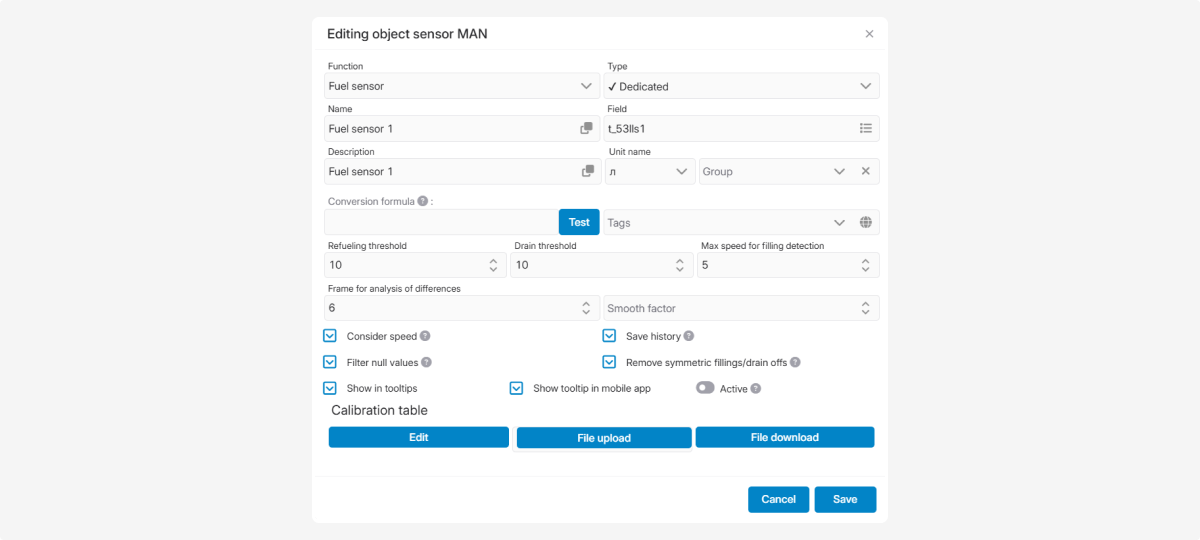
Additional settings for some sensors:

|
Frame for analysis of differences
|
For temperature sensors, defines how many consecutive measurements must exceed the threshold before the system confirms it. Helps avoid false alerts.
|
|
Smooth factor
|
Improves accuracy by removing spikes. The system takes values before/after a measurement, discards extremes, averages the rest, and replaces the original reading.
Example: n = 3 → takes 3 points on each side for averaging. The higher the n, the stronger the smoothing
|
|
Temperature range
|
Defines acceptable temperature limits
|
|
Remove symmetric fillings/drain
|
Filters out small fuel level changes (e.g., from slope or errors)
|
|
Active
|
Enables monitoring of refueling and draining events
|