How to configure event parameters
You can customize how events are displayed in the Control room: set event groups, colors, and processing statuses.
1. Go to Account settings
2. Open the Control room tab
In the interface, this tab may still be called GARM — this is the previous name of the module.
|

On the left side, you will see a list of event groups coming from the ontrol room (for example: Observation, Arming/Disarming, RFID Antenna, and others).

Each row represents a separate event group. For each group, you can configure:
-
Group color — select a color from the listColors help quickly identify the event type (for example, blue for monitoring, red for alarms)
-
Alarm type — enable this option if events in this group should be treated as alarms
-
Trash icon
 — deletes the group if it is no longer needed
How to add a new event group:
1. Click Add at the bottom of the event group list
2. Select a color for the new group
3. If needed, enable the Alarm type
4. Save the changes
After saving, the new group will immediately appear in the list and will be used in the Control room.
Event stage color settings
On the right side, you can configure the colors used to display the event status.
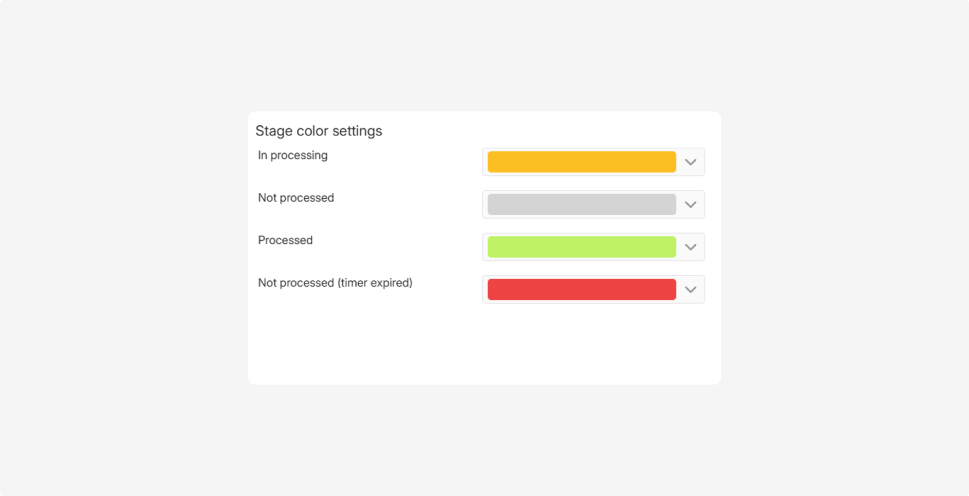
These colors help operators understand the current state of an event at a glance.
Available statuses:
-
In progressing — the event is being processed
-
Unprocessed — a new event
-
Processed — the event has been fully handled by the algorithm and the operator
-
Unprocessed (timer expired) — the event was not processed within the required time
To set a color, simply select it from the dropdown list.