How to view Velavu object history
The History tab allows you to view the history of Velavu objects for a selected period.
You can:
— see where an object was located at a specific moment
— check which room it was in
— track the object's movement on the map
How to open Velavu history
1. Go to the History tab

2. In the View field, select Velavu mode
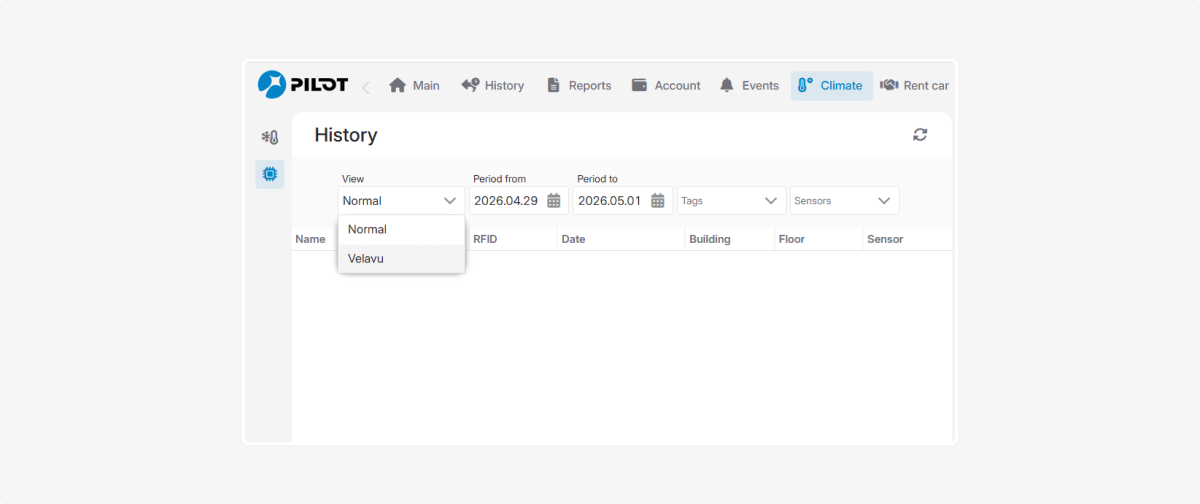
3. Specify:
-
Period from
-
Period to4. In the Objects field, select one or more Velavu objects for which you want to view the history

After this, records for the selected objects will appear in the table below.

Typically, the following columns are displayed for each record:
-
Name — the name of the Velavu object
-
RFID — if RFID data is available
-
Type — the object type, e.g., Anchor (ANCHOR) or Tag (TAG)
-
Date — the date and time of the record
-
Building — the building associated with the record
-
Floor — the floor where the object was located
-
Duration — how long the object remained in that state or location
-
Sensor — related sensor data, if available
-
Actions — buttons for viewing and playback
Customize your column display
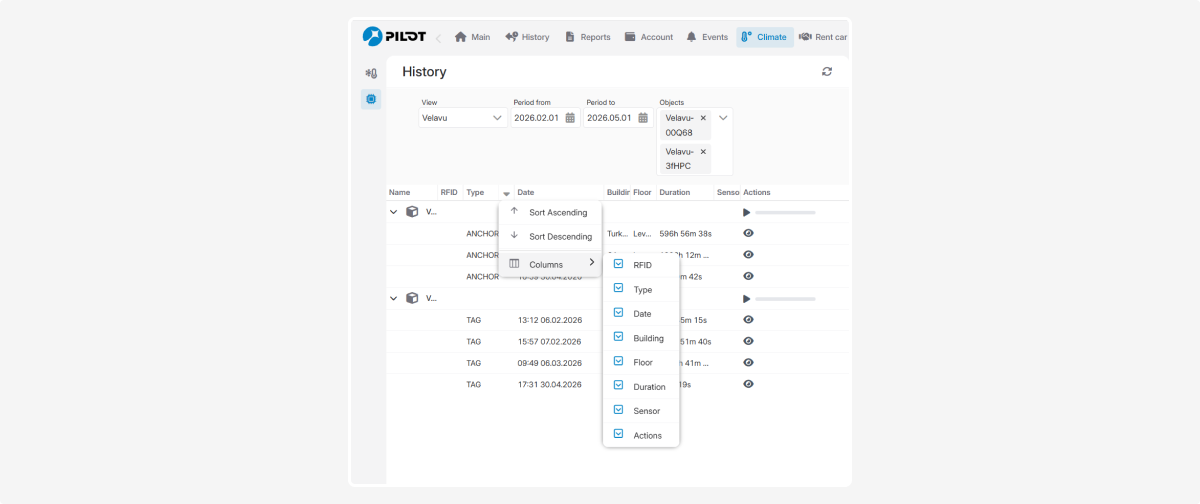
Click the arrow icon  in any column header. A settings menu will appear where you can:
in any column header. A settings menu will appear where you can:-
Sort data in ascending or descending order
-
Choose which columns to display on the screen
To configure which columns to show:
-
Click Columns — a list of available display parameters will open
-
Check the boxes next to the parameters you want to see
What you can do in history
View records by object
History is grouped by each selected object. You can expand the list for any object to view its history chronologically.
View the object on the map
When you select a record in the list, a map will appear on the right. The map will show the object's position at the time of that specific record.

Play back movements
Next to each device, there is a player control — a play button  and a timeline slider.
and a timeline slider.Use the player to see how the device moved across the site over time.
View the device card
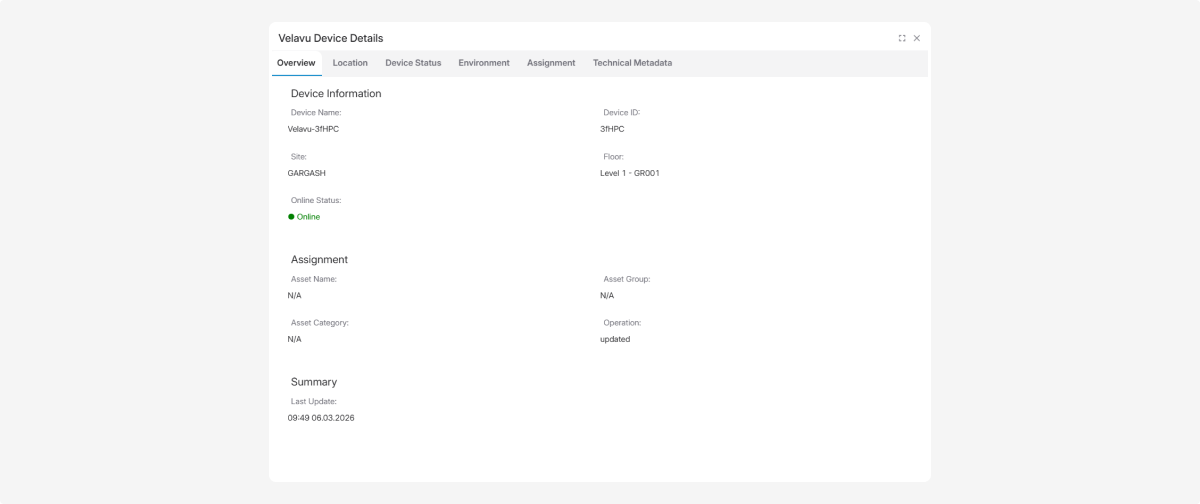
Next to each record, there is an icon  . Click it to open the Velavu device card.
. Click it to open the Velavu device card.The card opens with the exact data that was recorded at the moment that specific history entry was created.