Mileage report (Driver)
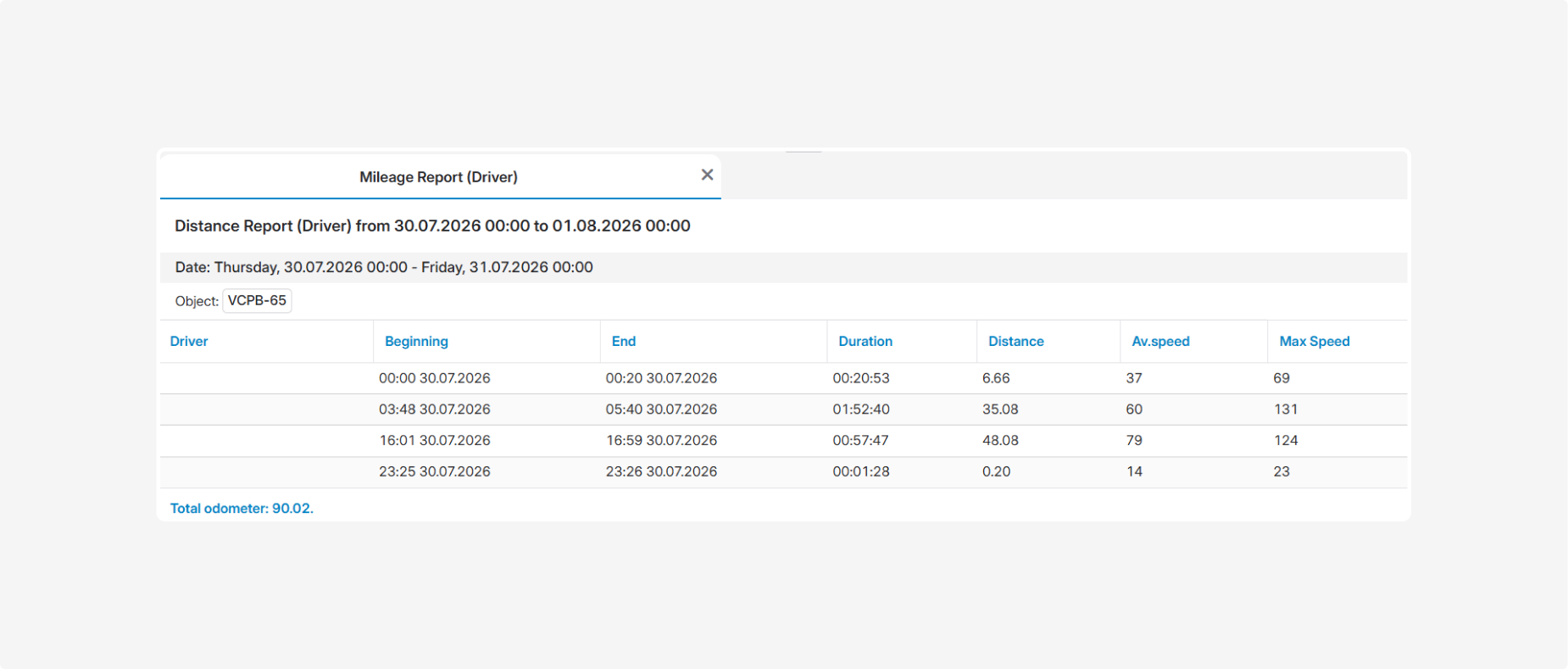
The Mileage Report (Driver) provides information about trips made by the selected vehicles during the specified period, with the data assigned to drivers. It allows you to identify who was driving during each trip, check the trip duration and distance, and analyze speed indicators.
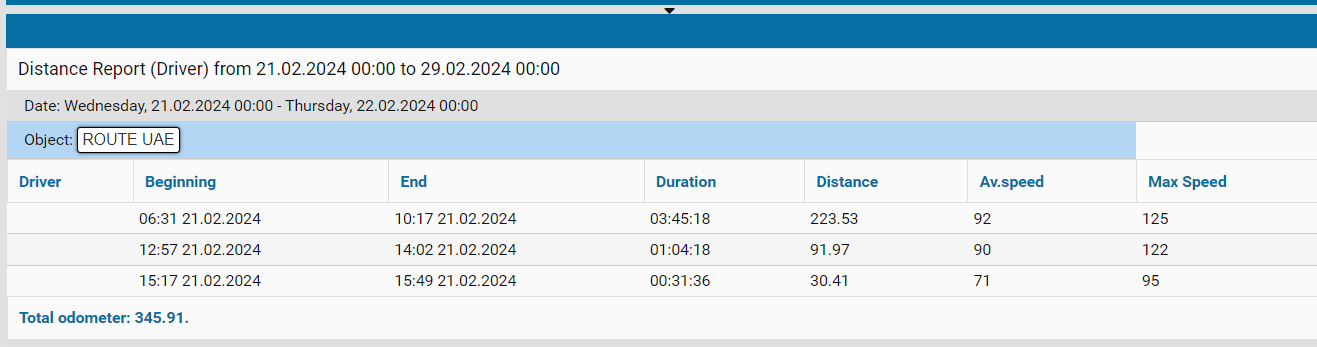
What the report shows
• Period — the start and end date and time of the reporting period
• Object — the name, registration number, or fleet number of the vehicle
• Driver — the driver assigned to the vehicle during the trip
• Beginning — the date and time when the trip started
• End — the date and time when the trip ended
• Duration — the total duration of the trip
• Distance — the distance traveled during the trip
• Av. speed — the vehicle’s average speed during the trip
• Max Speed — the highest speed recorded during the trip
The total mileage for each vehicle over the selected period is displayed at the bottom of the corresponding object section.
Driver filter
Before building the report, you can enable the On Driver option. When enabled, an additional Drivers panel opens to the right of the object list.
In this panel, you can select one driver, multiple drivers, or an entire driver group. The generated report will include only trips associated with the selected drivers.

1 — Enable the driver filter
2 — Select a driver from the list