Notification types and trigger conditions
When creating a notification, you select the event type that the system will monitor and configure its trigger conditions. These conditions determine exactly when a notification is sent—for example, when a speed limit is exceeded, during a prolonged stop, or when a sensor value changes.

Available notification types:
Movement and routes
• Speed
• Moving
• Parking
• Routes
System and device status
Sensors and events
Indicators
• Humidity
• Pressure
Geolocation and object events
Advanced scenarios
• Formula
How to configure conditions
1. Select a notification type
The notification type determines which specific event the system monitors—for example, speeding, idling, or a sensor trigger.

2. Set parameters
Define the criteria, such as a speed threshold or the duration of an event.
3. Add additional conditions (if needed)
• To add another condition, click the  button
button
• To remove a condition, use the  button
button• You can change the order of conditions using the arrows 
If multiple conditions are set, you can choose a logical rule between them:
• AND — the notification triggers only if ALL conditions are met simultaneously
• OR — the notification triggers if AT LEAST ONE of the conditions is met

Detailed notification types
The notification triggers if the object's speed matches the specified condition.

Conditions:
• Speed is:
— Greater than
— Less than
— Equal to the specified value
You can specify how long the condition must be met:
— seconds
— minutes
— hours
— kilometers
You can set a repeat interval to avoid receiving too many identical notifications. Example: If the speed exceeds 60 km/h for more than 60 seconds, the system sends a notification. The next notification will appear only after the set interval (e.g., 5 minutes) if the speeding continues.
To learn how to set up overspeeding notifications in the system, watch the video “How to create an overspeeding notification” on YouTube.
|
The Ignition events notification type is used to receive messages when the ignition state of an object changes.

Available conditions:
• On — the notification is sent when the ignition is turned on
• Off — the notification is sent when the ignition is turned off
• On and Off — the notification is sent for both events
• Moving without sensor on — the notification is sent if the object starts moving, but the ignition sensor is not turned on
If necessary, you can enable the Failure trigger option. This helps track repeated errors or unstable sensor performance. If this option is enabled, the following additional fields become available:
• Error count — how many times the error must repeat for the notification to trigger
• Reset time — after how many minutes the error counter will be reset

This notification type allows you to monitor how long an object remains with the ignition turned on or off.

After selecting this type, you must define the trigger condition:
• Longer than — the notification is sent if the ignition is on or off for longer than the specified value. Enter the numerical value for the duration and select the unit of measurement: seconds, minutes, hours, or kilometers of travel
• Break duration — a setting that allows the system to consider only those events separated by a break of a specified length. You must also specify a value and a unit of measurement for the break
The Sensor events notification type allows you to receive notifications when the state of a selected sensor changes.

Available conditions:
• On — the notification is sent when the sensor switches to the "on" state
• Off — the notification is sent when the sensor switches to the "off" state
• On and Off — the notification is sent for any change in the sensor's state
• Moving without sensor on — the notification is sent if the object starts moving, but the selected sensor is not turned on
If necessary, you can enable the "Failure trigger" option. This helps track repeated errors or unstable sensor performance. If enabled, the following additional fields become available:
• Error count — how many times the error must repeat for the notification to trigger
• Reset time — after how many minutes the error counter will be reset
• Sensor tags — select the group of sensors to which this condition applies

Watch the video “How to link sensor tags to notifications” to quickly learn how to configure sensor tags and set up notifications for alerts via various channels.
|
With this notification type, you can monitor how a sensor value changes and how long it remains in a specific state.

After selecting the type, configure the conditions:
• Have no changes — the notification is triggered if the sensor value does not change for longer than the specified time. Specify a numeric value and a unit of measurement.
• Longer than — the notification is triggered if the sensor remains in a specific state or its value meets the condition for longer than the specified time. Specify a value and a unit of measurement.
• Break duration — defines which break in sensor operation is considered long enough to end the current event.
• Sensor tags — select the sensor tag group to which the condition will be applied.
If a sensor with the selected tag is in the active state, the system starts counting how long it has been active. When the duration reaches the Longer than value, an event is created and a notification is sent.
After the notification is sent, repeated notifications for the same event are not sent while the sensor continues working without interruption.
If the sensor turns off, the system starts counting the break duration. If the sensor turns on again before the Break duration time has passed, the event is considered ongoing, and a new notification is not created.
If the sensor remains off for at least the time specified in Break duration, the current event ends. The next sensor activation period is considered a new event.
For example, if Longer than = 10 minutes and Break duration = 2 hours, the notification will be sent after 10 minutes of sensor operation. A repeated notification will appear only after the sensor has been off for at least 2 hours, then turns on again and works for longer than 10 minutes.
The Change of sensor value notification type allows you to track how much a selected sensor's value has changed over a specific period of time.

After selecting this type, you must define the trigger condition:
• Difference more than — enter the numerical value of the change required to trigger the notification. Example: "5" means the notification triggers if the value changes by more than 5 units
• Absolute value (Abs) — if enabled, the system tracks changes in both directions (increase and decrease)
• In period — the time interval during which the change is analyzed (seconds, minutes)
• Sensor tags — select the group of sensors to which this condition applies
The Multisensor events notification type is used for sensors that operate based on a state table (e.g., equipment status, device operating mode, switch positions). Such a sensor can have several possible values, and the notification is triggered when its state changes.

Next, configure the conditions:
• Changes only — if this option is enabled, the notification is sent only when the sensor value changes.
• Ignore values out of table — if this setting is enabled, the system will only consider values specified in the sensor's table. All other values (not described in the table) will be ignored, and no notifications will be sent for them.
• Sensor tags — select the group of sensors to which this condition applies.
The Sensor complex event notification type allows you to configure a single notification based on multiple sensor events simultaneously.

-
Select the sensor tags to which the condition applies
• Reset time — the period after which the system resets the event state
The Sensor promblems notification type is designed to detect potential problems in sensor operation and ensure their correct functioning.
This notification also acts as a fault indicator:
— A yellow indicator is displayed near the object status when a malfunction is detected
— A red indicator is displayed when the sensor enters a "failure" state

You can enable one or more conditions simultaneously:

• Out of calibration table — the notification is sent if the sensor value remains outside the calibration table for a specified interval of time.
• No changes — the notification is sent if the sensor value does not change for the specified time.
• Changes count — the notification is sent if the number of sensor value changes is above or below a set threshold over a specified period of time.
Additionally, you can take into account:
• Geofence enter — sensor changes will only be tracked when entering a geofence.
• Geofence exit — sensor changes will only be tracked when exiting a geofence.
• Additional Rule — allows setting a custom condition for fault detection. You must specify:
— Sensor field name
— Condition: >, <, =
— Value
• Failure trigger settings — if a malfunction repeats several times, the sensor may enter a "failure" state. In the trigger settings, you define:
— Error count — how many malfunctions must occur for the sensor to enter a failure state.
— Reset time (min) — the period without errors after which the failure status is automatically cleared.
• Trigger reset rules — specifies how long an object must stay at a parking spot or travel in motion without errors for the malfunction status to be automatically cleared. You can configure the conditions under which the trigger resets:
— Parking time (in minutes)
— Moving time (in minutes)
— Formula (if necessary)
• Sensor tags — select the group of sensors to which this condition applies.

The Device problems notification type is designed to detect incorrect tracker operation or errors in data transmission.

One or more conditions can be enabled simultaneously:
• Coords change without speed — the notification is triggered if the object's coordinates change, but the speed remains zero. You must specify a threshold and a unit of measurement.
• Speed without changing coords — the notification is triggered if the device transmits speed, but the coordinates remain the same.
Coord change — the notification is sent upon a sudden or abnormal change in coordinates. You can set parameters to define the threshold beyond which the event is considered a problem.
• Additional rule — allows setting a custom condition for fault detection. You must specify:
— Sensor field name
— Condition: >, <, =
— Value
-
Failure trigger settings — if a problem occurs several times, the device may enter a "failure" state. In the trigger settings, you define:
— Error count — how many times the problem must repeat.
— Reset time (min) — after how many minutes without errors the failure status will be cleared.
• Trigger reset rules — you can configure the conditions under which the trigger resets:
— Parking time (in minutes)
— Moving time (in minutes)
— Formula (if necessary)
The Pressure notification type is used to monitor the readings of pressure sensors. The notification is triggered if the pressure value matches the specified condition.

After selecting this type, you must define the trigger condition:
• Condition — select how the system should compare the pressure value:
— Greater than — the notification triggers if the pressure becomes greater than the specified value
— Equal to — the notification triggers if the pressure equals the specified value
— Less than — the notification triggers if the pressure becomes less than the specified value
• Value — specify the numerical pressure value for comparison
• Longer than — specify how long the condition must be met for the notification to trigger. You must enter a number and select a unit of measurement:
— seconds
— minutes
— hours
— kilometers of travel
• Repeat interval — sets a pause between identical notifications if the condition continues to be met
Example: If the pressure is below the specified value for more than 10 seconds, the notification is sent once. The next notification will appear only after the specified interval if the condition still persists.
• Sensor tags — select the group of sensors to which this condition applies
This notification type is used to monitor temperature via a selected sensor (e.g., in a refrigerator, engine, or other equipment).

Next, configure the conditions:
• If temperature — defines the main rule by which the system compares sensor readings with a specified value in degrees Celsius (°C). Available options:
— Greater than — the notification triggers if the temperature exceeds the specified value
— Equal to — the notification triggers if the temperature is exactly equal to the specified value
— Less than — the notification triggers if the temperature falls below the specified value
— Out of range — the notification triggers if the temperature goes outside the specified range (e.g., below +2°C or above +8°C)
• Longer than — allows you to set the minimum duration the condition must be met for the notification to trigger. This helps filter out brief and insignificant fluctuations (e.g., when opening a refrigerator door). In the "Units" field, you can choose seconds, minutes, or hours
• Have no changes — a separate condition that helps detect possible sensor malfunctions when readings "freeze" at one value. The notification is triggered if the temperature does not change for longer than the specified period
• Sensor tags — select the specific temperature sensors to which this rule applies
To learn how to receive alerts about critical temperature changes, watch the video “How to set up temperature notifications” on YouTube. The video shows where to find notification settings and how to create a temperature notification to monitor conditions and respond in time.
|
The Humidity notification type is used to monitor humidity via a selected sensor (e.g., in a cargo hold or refrigerator).

After selecting the type, define the conditions:
• If humidity:
— Greater than — the notification triggers if the humidity is above the specified value
— Less than — the notification triggers if the humidity is below the specified value
— Equal to — the notification triggers if the humidity equals the specified value
— Out of range by — the notification triggers if the humidity deviates from the specified range by the indicated value
• Value — specify the numerical humidity value for comparison. The value is set in percent (%)
• Longer than — specify how long the condition must be met for the notification to trigger:
— Seconds — the condition is met for longer than the specified number of seconds
— Minutes — the condition is met for longer than the specified number of minutes
— Hours — the condition is met for longer than the specified number of hours
• Have no changes — this setting allows you to monitor situations where humidity does not change for a specified time. The notification is triggered if the humidity value remains unchanged for longer than the specified period.
The Connection lost notification type is used to monitor the connection status of an object. The notification is triggered if no data is received from the device for a specified time or distance.

After selecting this type, you must define the trigger condition:
• Longer than — specify how long the connection loss must last for the notification to trigger:
— Seconds — triggers if connection loss lasts longer than the specified number of seconds
— Minutes — triggers if connection loss lasts longer than the specified number of minutes
— Hours — triggers if connection loss lasts longer than the specified number of hours
— Kilometers — triggers if the object has traveled the specified distance without connection
The Odometer notification type is used to monitor the object's mileage via the odometer. It allows you to receive notifications if the mileage is greater or less than a specified value over a selected period.

After selecting the type, define the conditions:
• If Odometer:
— Greater than — the notification triggers if the object's mileage is greater than the specified value.
— Less than — the notification triggers if the object's mileage is less than the specified value.
— Monthly limit exceeded — the notification triggers if the mileage for the month has exceeded the established value.
• Units — specify the numerical mileage value for comparison. The value is set in kilometers.
• Period — select the period over which the condition is checked:
— Absolute — the condition is checked for the entire period after the notification was created.
— Per month — the condition is checked within the current month.
— Per day — the condition is checked within the current day.
The Moving notification type is used to monitor the movement of an object. The notification is triggered if the object is in motion for longer than a specified time or covers a specified distance.

Configure the conditions:
• Longer than — specify how long the object must be in motion for the notification to trigger. Enter a number and select the unit of measurement:
— Seconds — triggers if the movement continues for longer than the specified number of seconds.
— Minutes — triggers if the movement continues for longer than the specified number of minutes.
— Hours — triggers if the movement continues for longer than the specified number of hours.
— Kilometers — triggers if the object has traveled more than the specified distance in motion.
• Break duration — this setting allows the system to account only for movement events separated by a break of a specified length. If the break between two segments of movement is less than the specified value, the system will consider them one continuous movement. Example: If a break of 10 seconds is specified, a stop of less than 10 seconds will not interrupt the movement event.
The Parking notification type is used to monitor object stops. The notification is triggered if the object remains stationary for longer than the specified time.

After selecting this type, you must define the trigger condition:
• Longer than — specify how long the object must be stationary for the notification to trigger:
— Seconds — triggers if the stop lasts longer than the specified number of seconds
— Minutes — triggers if the stop lasts longer than the specified number of minutes
— Hours — triggers if the stop lasts longer than the specified number of hours
The Geofences notification type is used to monitor events related to geofences. It allows you to receive notifications when an object enters a geofence, leaves it, stops inside it, or passes through it without stopping.

Available conditions:
• In — the notification triggers when the object enters the selected geofence.
• Out — the notification triggers when the object leaves the selected geofence.
• In+Out — the notification is sent for both entering and leaving the geofence.
• Stop in geofence — the notification triggers if the object stops inside the geofence.
• No stop in geofence — the notification triggers if the object enters a geofence but leaves it without stopping.
• Min. speed — for stop or no-stop conditions, you can specify a minimum speed. This parameter helps determine whether the object is considered stationary or moving within the geofence.
The Fuel level notification type is used to monitor the fuel level via a selected sensor on an object. The notification is triggered if the fuel level matches the specified condition.

After selecting this type, you must define the trigger condition:
• If fuel level:
— Greater than — the notification triggers if the fuel level is higher than the specified value
— Less than — the notification triggers if the fuel level is lower than the specified value
— Equal to — the notification triggers if the fuel level equals the specified value
• Units — specify the numerical fuel level value for comparison with the sensor readings
The Fuel Refuelings & Drainings notification type is used to monitor events related to changes in fuel level. It allows you to receive notifications about fuel refuelings and drainings on an object.

After selecting this type, you must specify which events should trigger the notification:
• Refuelings — the notification is triggered when the system records a fuel refueling
• Drainings — the notification is triggered when the system records a fuel draining
• Refueling start — the notification is triggered at the moment the refueling begins
• Draining start — the notification is triggered at the moment the draining begins
The Approaching to object notification type is used to monitor situations where one object approaches another within a specified distance. In this notification type, one object is treated as a moving geozone, and the system tracks when another object enters or leaves this zone.

After selecting this type, you must define the trigger condition.
If the distance to the object is:
• Less than — specify the distance at which an object is considered to be near another object. The value is set in meters
• Longer than — specify how long the object must remain within the action zone of another object for the notification to trigger. The value is set in seconds
• Enter — if this option is enabled, the notification is triggered when the object enters the action zone of another object
• Exit — if this option is enabled, the notification is triggered when the object leaves the action zone of another object
• Objects — select the objects from the list for which proximity tracking will be enabled
The system compares the objects from the list and determines when one object comes within the specified distance of another. In this process, the object being approached is treated as a moving geozone. For example, if a vehicle from the selected list comes closer than 100 meters to another object and remains nearby for more than 30 seconds, the system will send a notification.
The Formula notification type is used to verify a user-defined condition specified as a formula. The notification is triggered if the result of the formula corresponds to the value true or false.
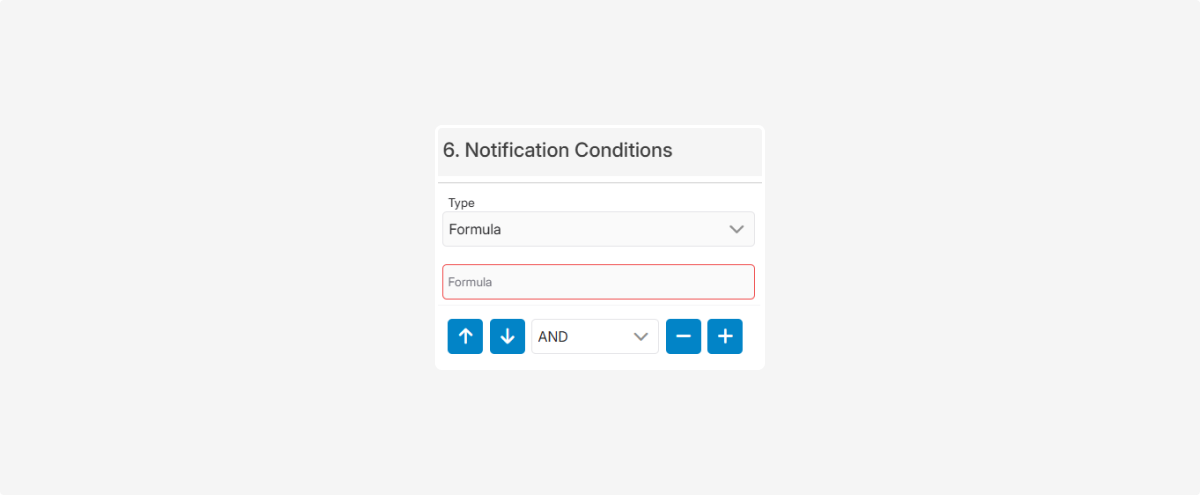
In the Formula field, you must enter the expression for verification. You can use fields from raw data, sensor values, handlers, and formulas in this expression.
The notification is triggered if the result of the verification is:
• true — the condition is met
• false — the condition is not met
The Blocked for limits violation notification type is used to send a notification if an object has been blocked due to a violation of established limits.
If the system records such a lock, a notification will be sent via the selected channel.
After selecting this type, you must specify the delivery method, for example:
• Email
• SMS
• Webhook
• Telegram
• Push
If Email is selected, notifications will be sent to the specified email address.
This notification type is automatically applied to all existing objects, as well as to all new objects created after its configuration.

The Scheduler notification type is used to monitor object movement during working and non-working hours in accordance with its work schedule settings.

After selecting this type, define the trigger conditions for the notification:
• In scheduled time — the notification is triggered if the object is moving within the established working hours
• Out of scheduled time — the notification is triggered if the object is moving outside the established working hour
• Longer than — specify how long the object must be in motion for the notification to trigger
• Break duration — this setting allows the system to account for breaks between movement events. If the break is shorter than the specified value, the system will consider the movement as continuous. For example: if a break of 10 seconds is specified, a short stop of less than 10 seconds will not interrupt the movement event
The Alarm media notification type is used to send a notification when a device successfully uploads a media file associated with a recorded event to the storage server. This notification is triggered not at the moment of the event itself, but only after the file has been successfully transmitted and saved on the server.

For example, a notification can be sent when the device uploads a photo of a violation, a video fragment of an event, a snapshot from the driver's cabin, a road situation image, or any other file created after the event was recorded.
Such notifications can be used for events related to ADAS / DMS violations and warnings, such as driver distraction, phone use, smoking while driving, fatigue, collision risk, lane departure, or harsh braking.
The Repeat interval parameter allows you to set a pause between identical notifications if the device uploads several media files consecutively for the same event.
The iButton duplicate detector notification type is used to detect situations where the same iButton is recorded on more than one vehicle within a specified period of time.

Such a notification helps detect incorrect driver identification. For example, if a driver used the same iButton on one vehicle and then on another, the system might assume the driver switched to another object and update the link. As a result, trip data, driver information, and reports may become incorrect.
After selecting this type, you must define the condition:
• For the period — specify the time during which the system will check if the same iButton was used on more than one object. The notification is triggered if the same iButton is detected on multiple objects within the specified time.
For this notification type to work correctly, the following must be true:
— an iButton sensor must be configured on the objects
— the drivers module must be in use
— the notification must be linked to the objects that need to be monitored
The Routes notification type is used to monitor events on routes that have already been assigned to an object. In the settings of this notification, you choose which route events should trigger notifications.

After a vehicle is linked to a route, the system begins comparing the object's trips with the assigned route:
— it records route entry and exit.
— it tracks the passing of control points.
— it includes trips in route reports.
In the settings for this notification type, you specify which route events should trigger notifications:
• In the stop area — the notification is triggered when the object is within the zone of a control point or stop. The radius of such a zone is defined during route configuration on the map.
• Outside the stop area — the notification is triggered when the object leaves the zone of a control point or stop. The zone boundary is also determined by the radius specified when editing the route.
• Entry in route — the notification is triggered when the object enters the route boundaries. Route boundaries are determined by the route width configured on the map.
• Out the route — the notification is triggered when the object leaves the route boundaries.