POI
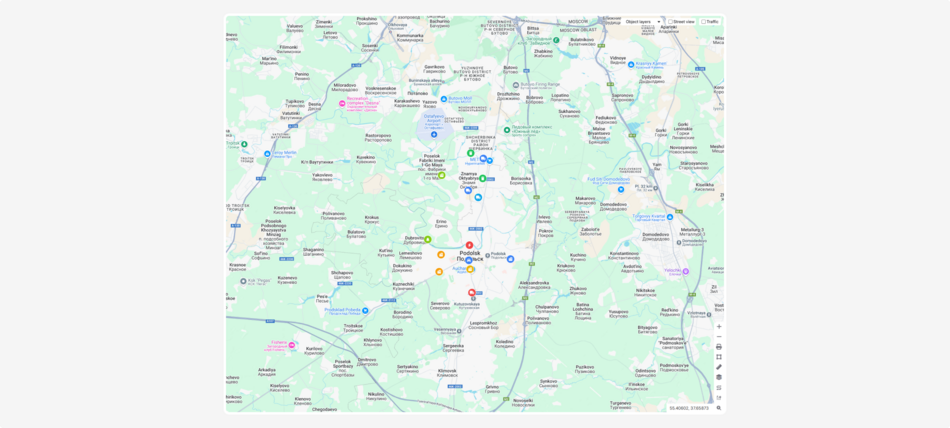
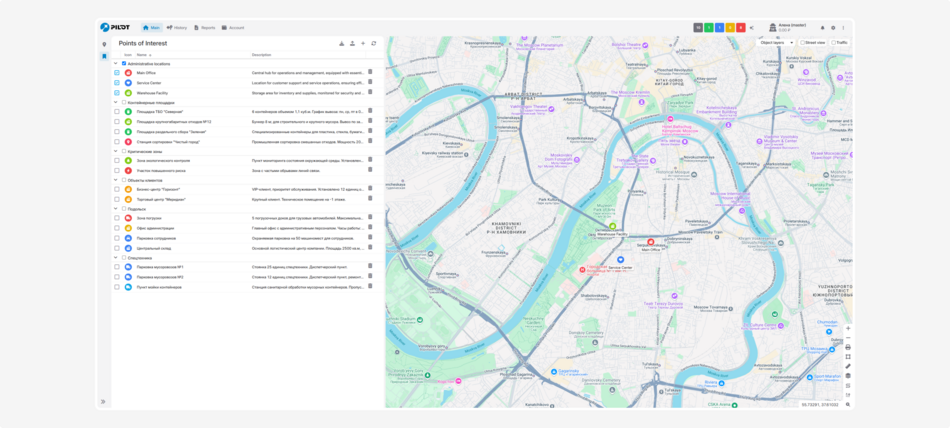
The Points of Interest module allows you to mark important locations on the map. These can include offices, warehouses, service points, parking areas — anything you need to keep track of.
How to use the module:
-
Mark important locations on the map with precise GPS coordinates
-
Use different icons to quickly identify the type of location
-
Add descriptions for each point
-
Group points by purpose
-
Save and load data in Excel format
Access rights
You can flexibly configure access rights for each user when working with the module. This allows you to separate employee roles and protect Points of Interest (PoI) data from unauthorized changes.
How to set access rights:
1. Go to Account settings
2. Open the Staff and groups tab
3. Select the desired user and double-click on them
4. In the user card, go to the Rights tab
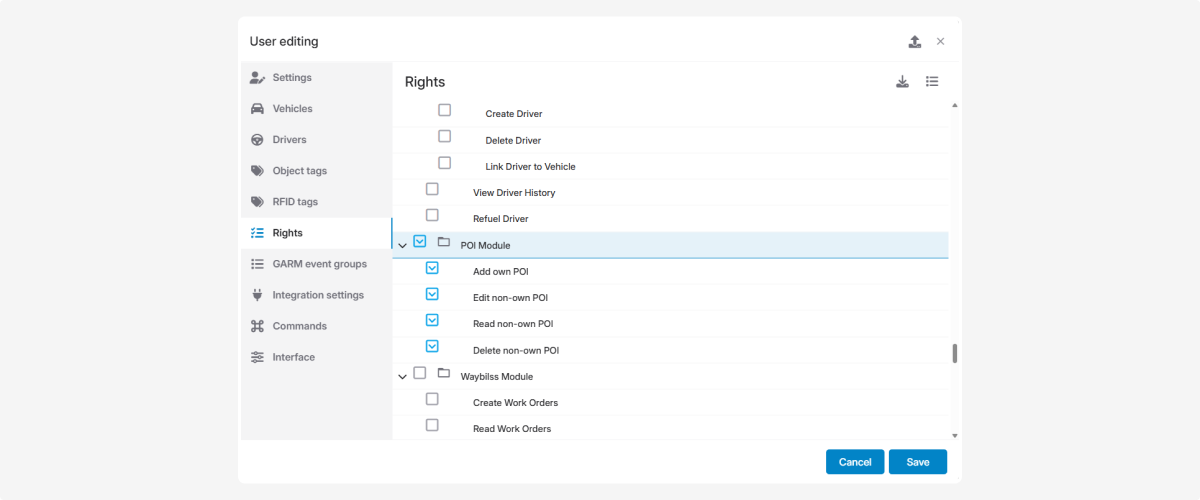
5. Find the Points of Interest (PoI) module and check the necessary permissions:
-
Add own POI — create personal points of interest, visible only to this user.
-
Read non-own POI — view points created by other users.
-
Edit non-own POI — modify points created by other users.
-
Delete non-own POI — delete points created by other users.
Now each user can create private PoIs while also working with shared points according to their assigned rights, ensuring safe and organized map management.
How to add a point:
-
Click the Add point button

2. In the pop-up window, fill in the information:
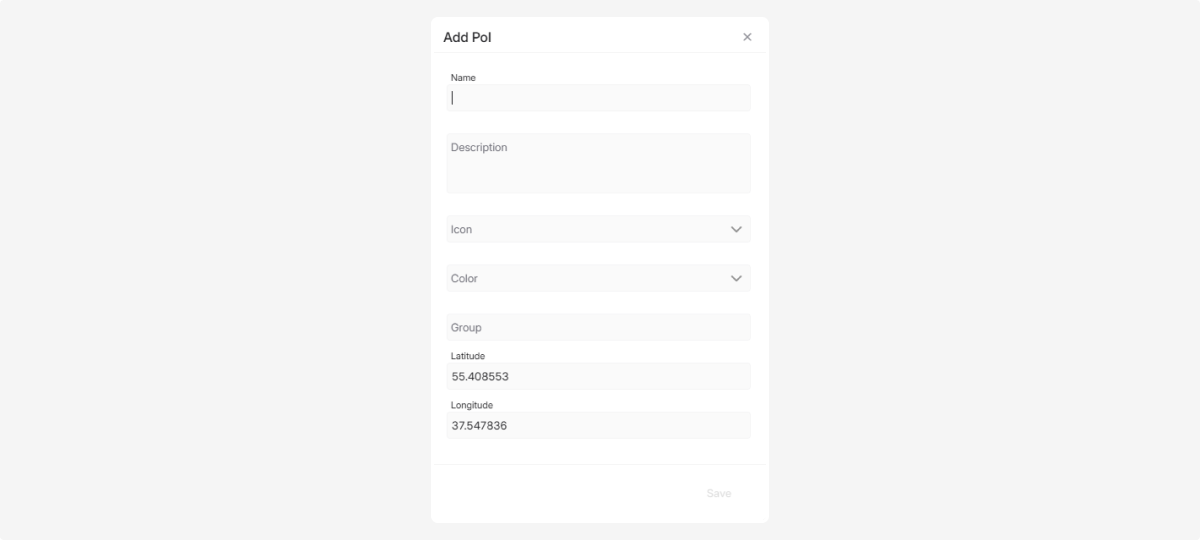
— enter the name of the point
— write a description
— choose an appropriate icon and color
— select the group to which the point will belong
— specify the latitude and longitude, or click on the map to indicate the location
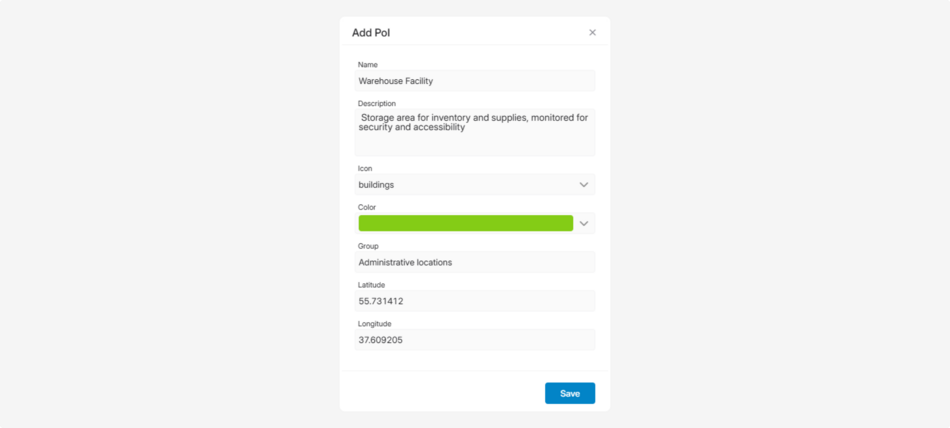
3. Click Save
How to edit a point:
-
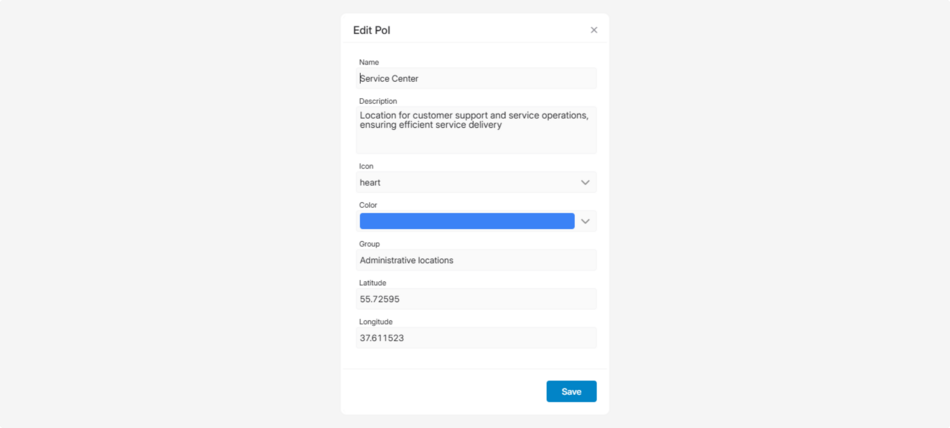
Double-click on the point entry in the list2. In the pop-up window, edit the necessary information

3. Click Save
Saving and loading data
-
To save all points to an Excel file, click the download button
-
To upload points from an Excel file, click the upload button

-
To refresh the list of points, click the refresh button

Working with the map
Select the points from the list, and they will be displayed on the map with the icons you have chosen.

Click on a point to view its description.

Use the map tools to work with the points. For example, measure distances between them or calculate travel distances to plan routes.