Time control
The Time сontrol module helps you monitor the working hours of vehicles and drivers according to a defined schedule.
With this module, you can configure:
— which days and hours an object is allowed to operate
— how long it may drive without a break
— required rest time during the day, at night, and within 24 hours
— maximum time on a route, inside a geofence, or between geofences
Based on these settings, the system generates violation notifications — for example, overtime driving, insufficient rest, or excessive time on a route.
How to сonfigure an object’s working hours
1. Go to the Online tab
2. Select the required object from the list
3. Double-click it to open the object card
4. In the left panel, open the Working time tab
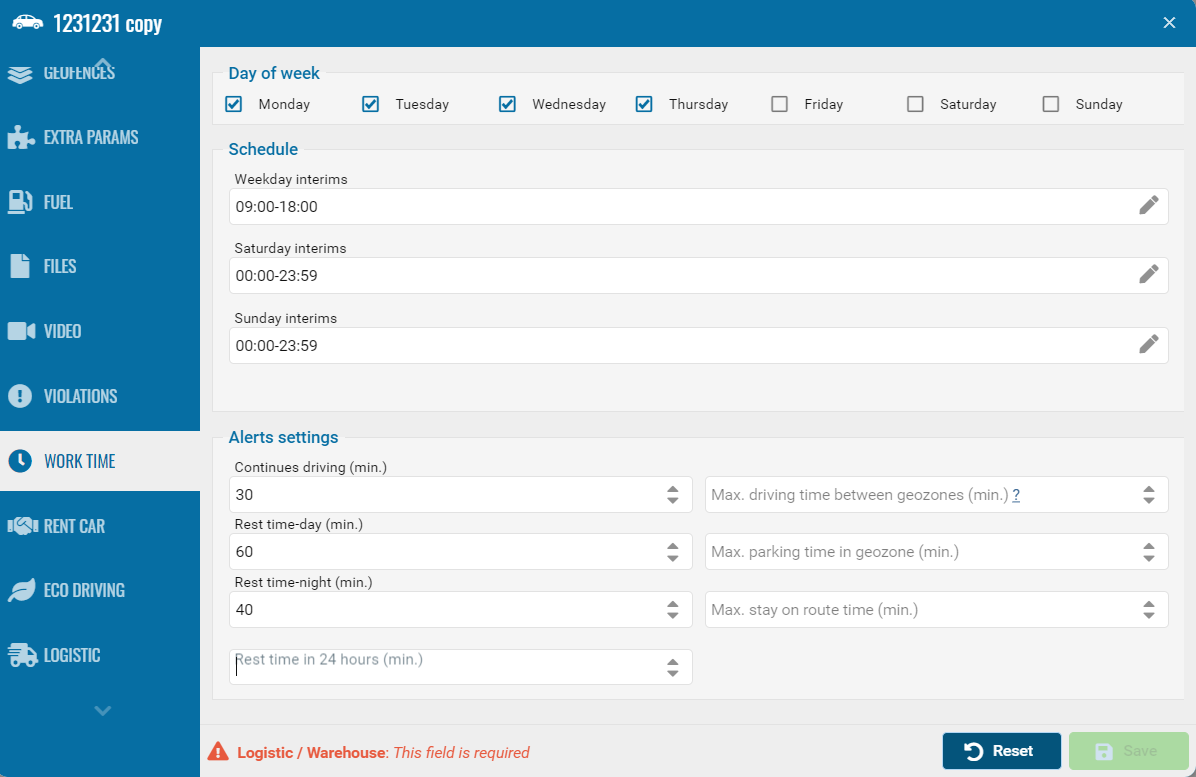
The tab includes several sections:
Days of the week
Select the days when the object is allowed to operate.
Schedule
The Schedule block defines working time intervals for:
-
Weekdays (Mon–Fri)
-
Saturday
-
Sunday
To set time intervals:
1. Click the icon 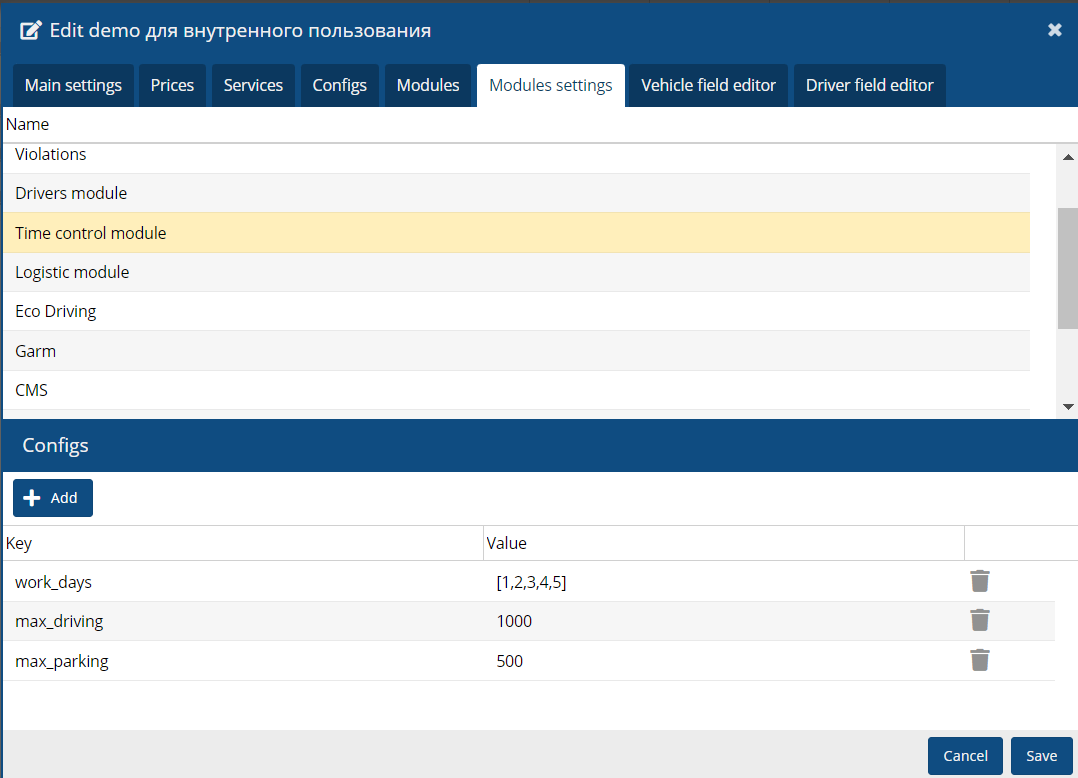 next to the required row
next to the required row2. In the window that opens:

-
Click

-
Specify the working time interval
-
Add multiple intervals if necessary
3. Save the changes
Night Time
The Night time block defines the time period considered as night.
Specify:
— night start time
— night end time
These settings are used to calculate night rest and generate related notifications.
Alerts settings
Here you define threshold values. If they are exceeded, the system generates notifications.
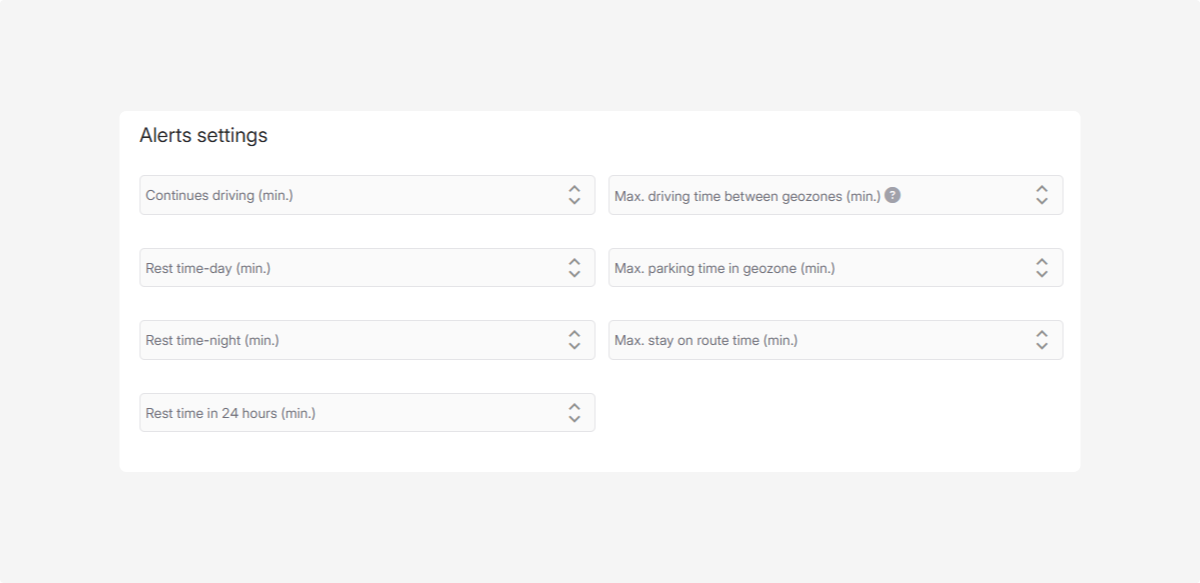
Available parameters:
-
Continues driving (min.) — allowed continuous driving time without a break
-
Rest time-day (min.) — required daytime rest
-
Rest time-night (min.) — required night rest (within the night period)
-
Rest time within 24 hours (min.) — minimum total rest within 24 hours
-
Max driving time between geofences (min.) — maximum trip time between geofences
-
Max parking time in geofence (min.) — maximum allowed parking time inside a geofence
-
Max time on route (min.) — maximum allowed time on a route from start to trip completion
The system compares actual data with these values. If a violation is detected, a notification can be created.
How to configure a driver’s working hours
To configure drivers, the Drivers module must be enabled.
|
1. Go to the Drivers tab
2. Double-click the required driver
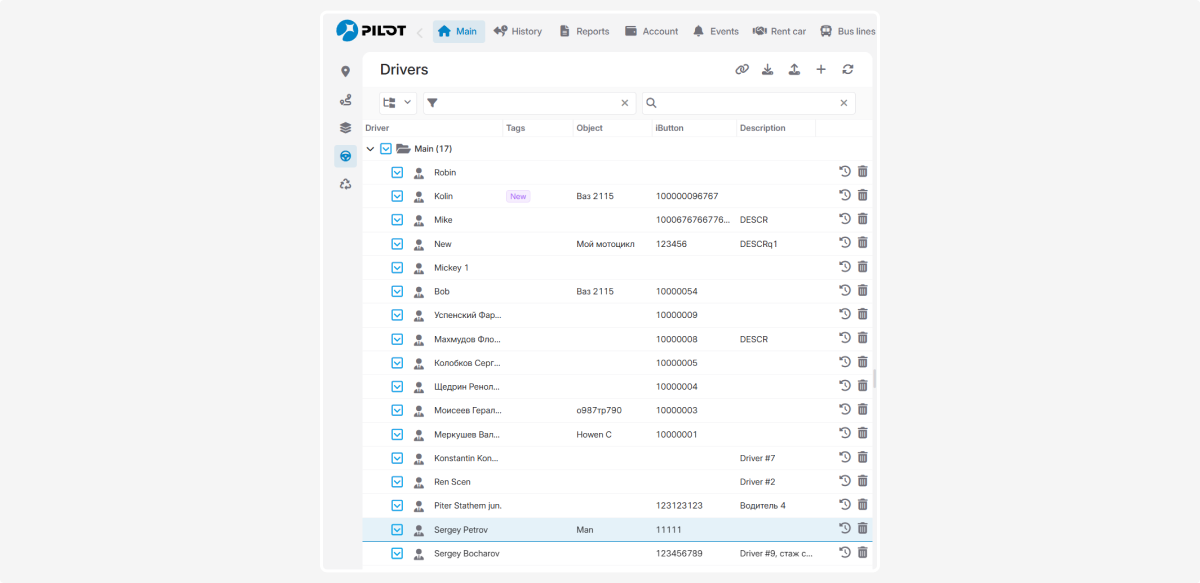
3. Open the Work time tab

4. Configure the schedule:
-
Select the days when the driver is allowed to work
-
In the Schedule block, define working intervals for:— Weekdays (Mon–Fri)— Saturday— Sunday
To set time intervals:
1. Click the icon next to the required row
next to the required row2. In the window that opens:
-
Click
-
Specify the working interval3. Save the changes
If you try to assign a driver to a vehicle outside of working hours, the system will display a warning and block the operation.
Default working time settings at account
In the administrative panel, you can configure default working time and limitation settings for the Time control module at the contract level.
These settings are used as a template:
— when creating new objects
— for objects that have never saved their own Working Time settings
This means you configure the rules once in the contract, and when a new object is created, these values are automatically applied. They can still be edited later at the object level if needed.
You can specify only the parameters you want to use as defaults. Other fields will use system defaults or be filled manually.
How to set contract configuration
1. Go to the Admin panel
2. Open the required contract card
3. Open the Module settings tab
4. Select Time control module

5. In the Configs section, add a key and its value, for example:
• works_day = 1,2,3,4,5 (working from Monday to Friday)
• max_driving_time = 1000 (no more than 1000 minutes of movement between geofences)
• max_parking_time = 500 (no more than 500 minutes of parking in the geofence)
6. Save the contract settings
Available configuration keys
|
Configuration key
|
Description
|
Example
| ||
|
continues_driving
|
Max continuous driving (min.)
|
continues_driving = 250
| ||
|
max_driving_time
|
Max driving time between geofences (min.)
|
max_driving_time = 10
| ||
|
max_parking_time
|
Max parking time in geofence (min.)
|
max_parking_time = 60
| ||
|
max_stay_on_route
|
Max time on route (min.)
|
max_stay_on_route = 600
| ||
|
rest_time_day
|
Minimum daytime rest (min.)
|
rest_time_day = 15
| ||
|
rest_time_night
|
Minimum night rest (min.)
|
rest_time_night = 15
| ||
|
rest_time_full
|
Minimum rest within 24 hours (min.)
|
rest_time_full = 30
| ||
|
works_day
|
Specific weekdays (1–7 Monday–Sunday)
|
works_day = 1,2,3,4,5
| ||
|
work_schedule
|
Work schedule in JSON format
Intervals are defined in the format HH:MM-HH:MM.
|
|
By configuring settings at the account level, you centrally define the main working rules and save time when creating new objects.