Timetable
The Timetable module works together with the Bus lines module. It defines when a vehicle should pass the trip checkpoints or begin another run along the route.
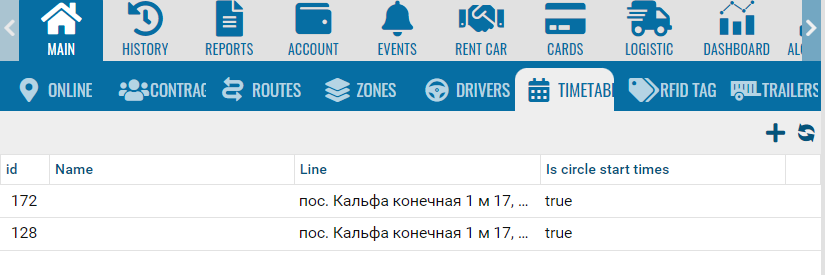
Timetable data is used in the Round Trips report. The report compares the planned time with the vehicle’s actual movement and shows any deviations from the timetable.
The Bus lines module defines the route, while the Timetable module defines the planned times for travelling along that route.
How to create a timetable
1. Open the Timetable tab
2. Click Add timetable 
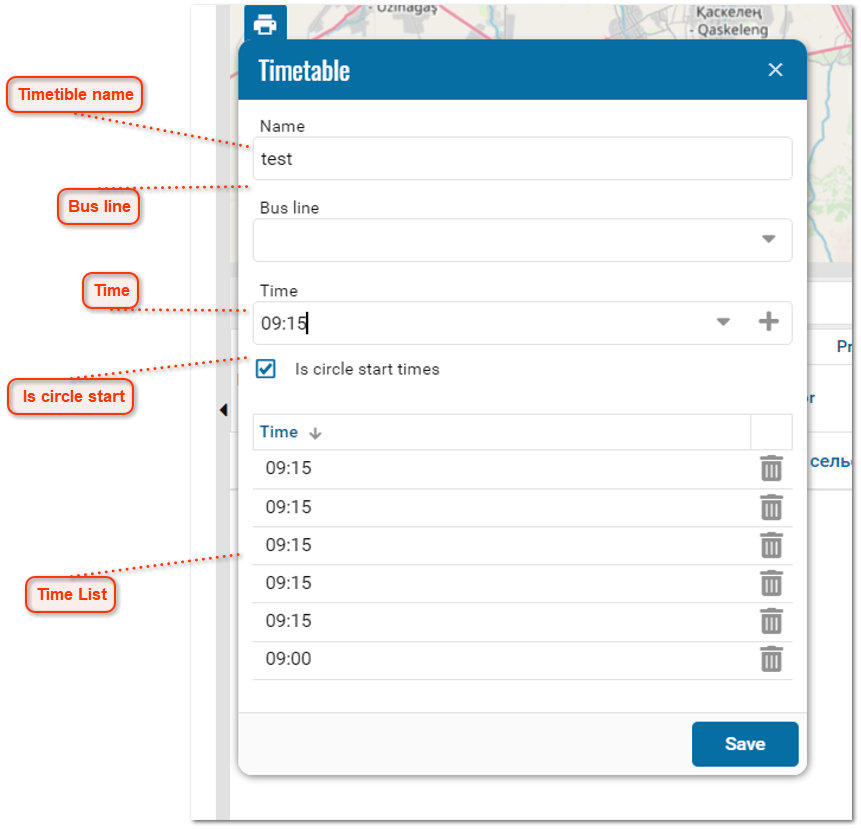
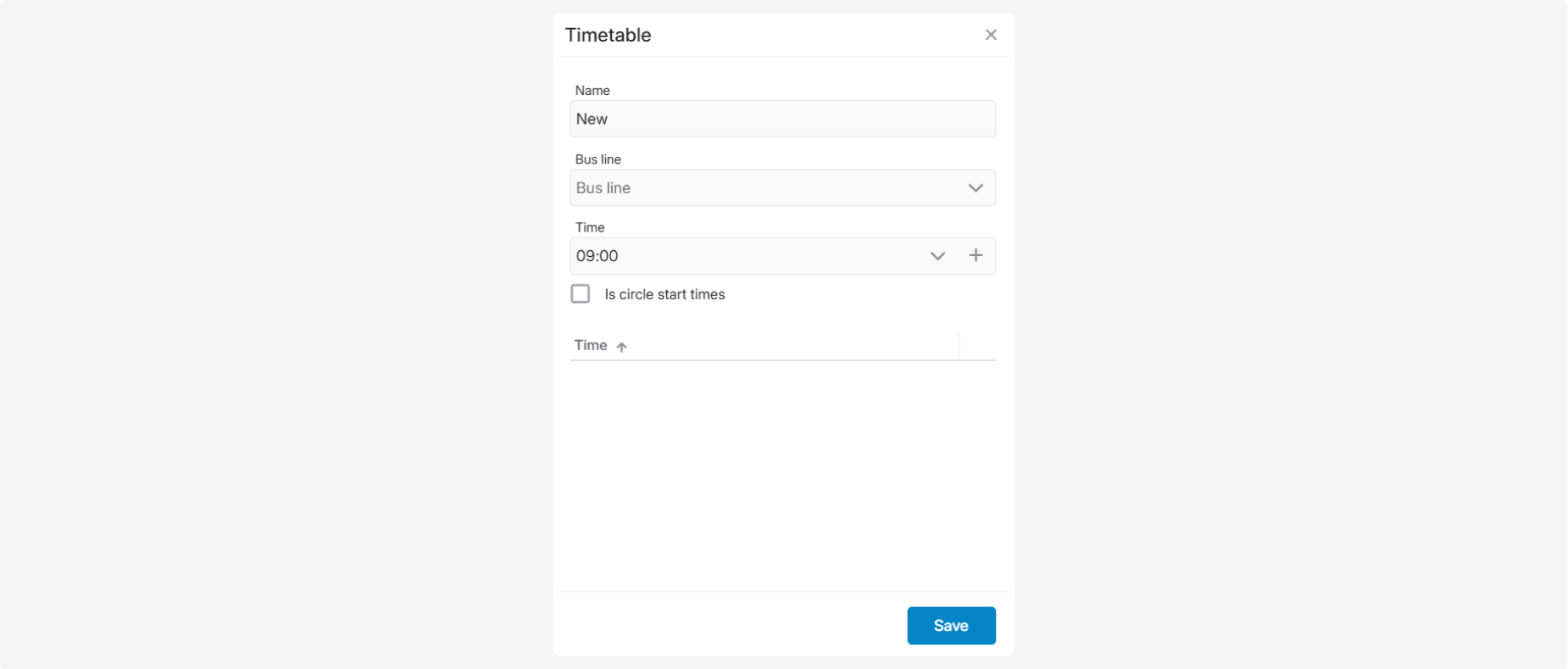
3. Complete the timetable settings:
-
Name — enter a name for the timetable
-
Bus line — select the trip for which you want to create the timetable. The trip must first be created in the Trips module. The timetable will be linked to the selected route
-
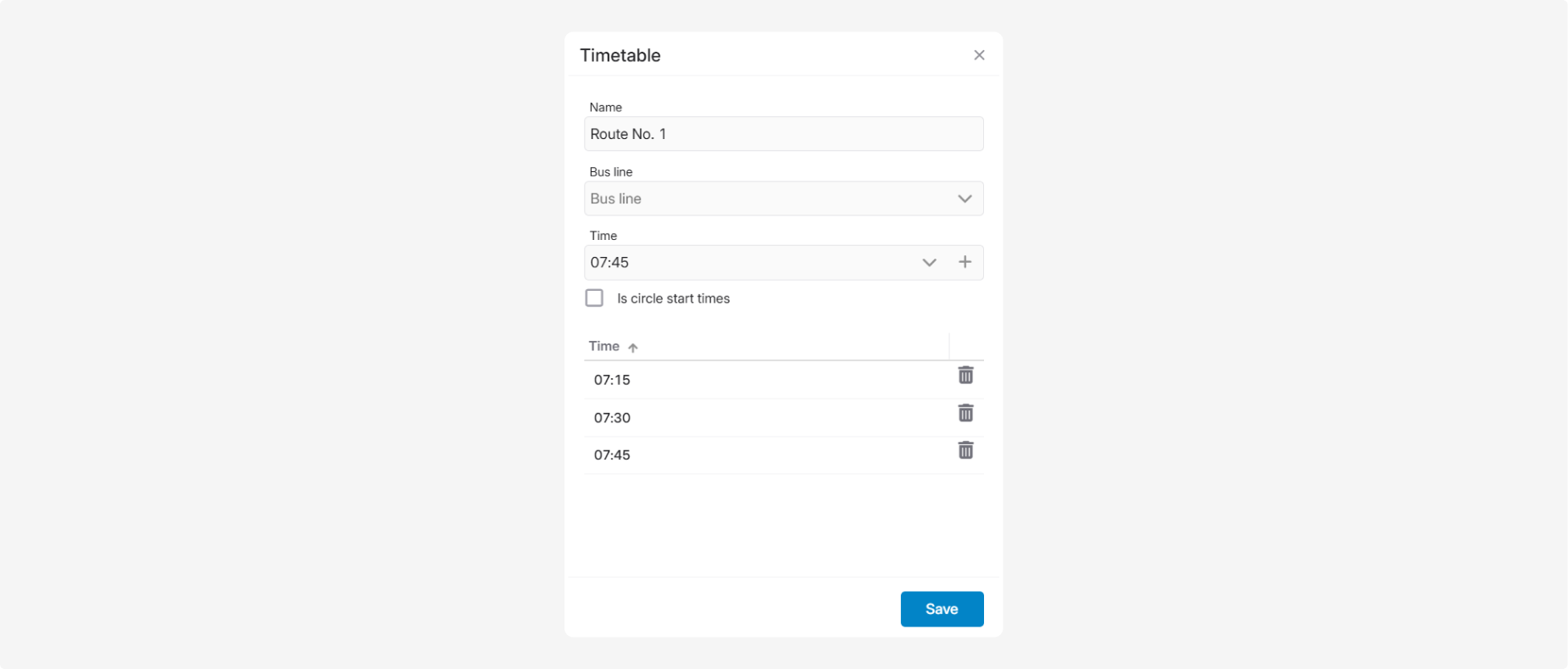
Time — enter the planned time at which the vehicle should pass each stop on the selected trip, and then click +. Add each time separately. The added times appear in the list at the bottom of the formFor example, if the trip has three consecutive stops, you can add:
-
07:15 — planned time at the first stop
-
07:30 — planned time at the second stop
-
07:45 — planned time at the third stop
-
Is circle start time — select this option if the added times should indicate when new route cycles beginFor example, if you add 07:12, 08:12, and 09:12, the vehicle should:
-
begin the first route cycle at 07:12
-
begin the second route cycle at 08:12
-
begin the third route cycle at 09:12
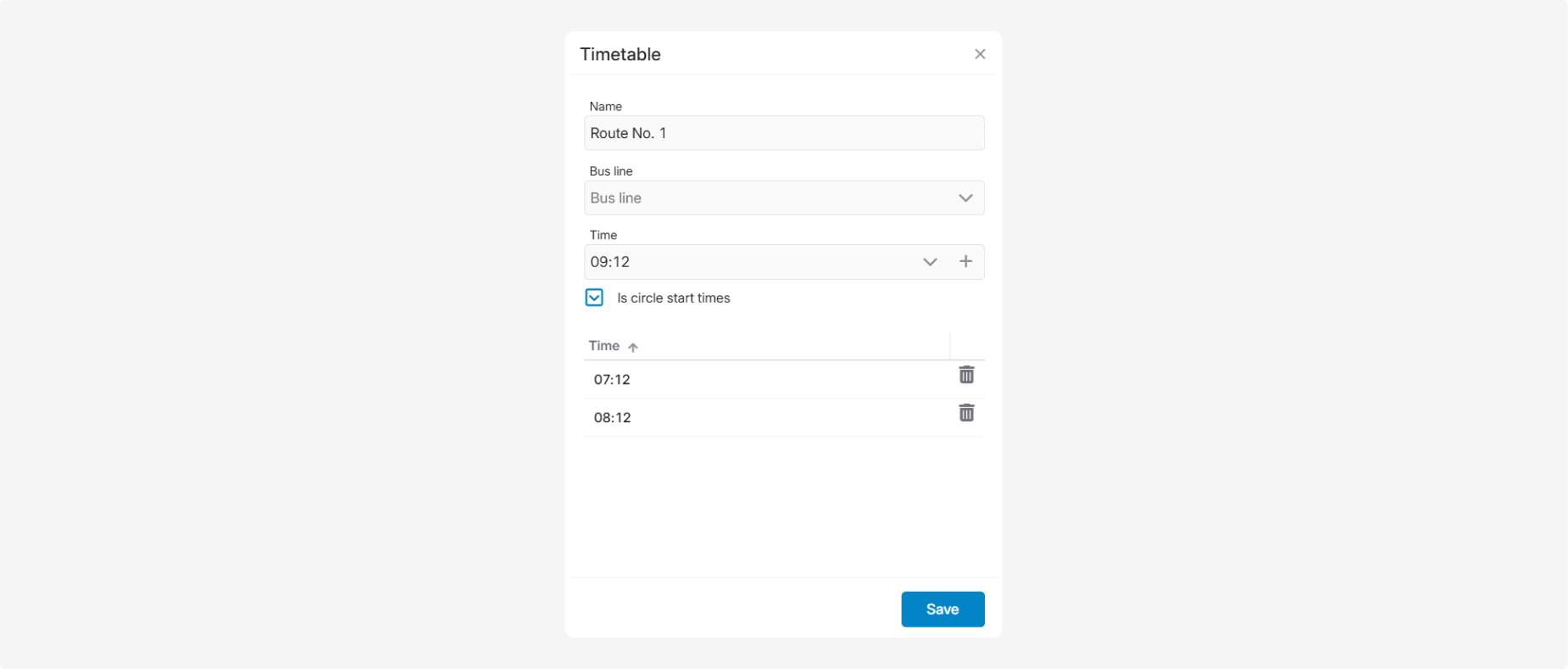
A new route cycle means that the vehicle starts another run along the selected route from its starting point.
The added values appear in the Time section at the bottom of the form. To remove a value, click the trash can icon next to it.
4. Click Save