Trips and parkings report (working hours)
The Trips and parkings report (working hours) provides information about the movement and parking periods of the selected vehicles based on their work schedules. It allows you to determine how an object was used during working or non-working hours: when it was moving, where it was parked, the distance traveled, and the time spent in each state.
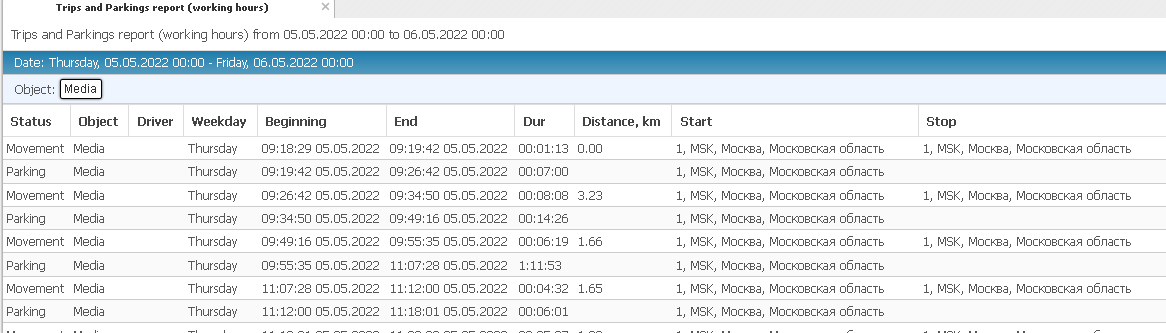
What the report shows
• Status — the object status: Movement or Parking
• Object — the vehicle name, registration number, or fleet number
• Driver — the driver assigned to the vehicle during the corresponding event
• Weekday — the day of the week on which the movement or parking occurred
• Beginning — the date and time when the movement or parking period began
• End — the date and time when the movement or parking period ended
• Dur — the duration of the corresponding trip or parking period
• Distance, km — the distance traveled by the object during the trip; no value is displayed for parking periods
• Start — the movement start address or parking location
• Stop — the movement end address; this value may not be displayed for parking periods

Summary indicators
Summary indicators for the current object or report block are displayed below the table:
• Total odometer — the total distance traveled by the object during the included hours
• Move Time — the total duration of all movement periods
• Parking Time — the total duration of all parking periods
• Average Speed — the object’s average speed while moving
• Max Speed — the highest speed recorded while the object was moving
A separate summary section below displays the indicators for the entire selected period:
• Total odometer for period
• Move Time for period
• Parking Time for period
• Average Speed for period
• Max Speed for period

Working-hours options
Before building the report, you can select which data to include:
• Only work hours — includes events that occurred during working hours according to the configured work schedule

• Only non-work hours — includes events that occurred outside the configured working hours

Working and non-working hours are determined by the object’s work schedule settings.
Only work hours
When Only work hours is selected, the report allows you to analyze vehicle use during the hours specified in the work schedule.
The report displays:
• trips made during working hours
• parking periods between trips
• the parking period from the beginning of the working interval until the first movement
• the parking period from the last movement until the end of the working interval

Only non-work hours
When Only non-work hours is selected, the report displays movement and parking periods outside the configured work schedule.
It can be used to identify:
• trips made after working hours
• vehicle use on weekends or non-working days
• movement before the beginning of a work shift
• extended parking periods outside working hours
