Composite objects
The Composite objects module is designed to combine multiple fuel-related objects and sensors into one logical object and track them as a single fuel accounting system.
It helps you build a clear fuel movement scheme — from source and storage to dispensing — and accurately calculate fuel inflow, outflow, and balance.
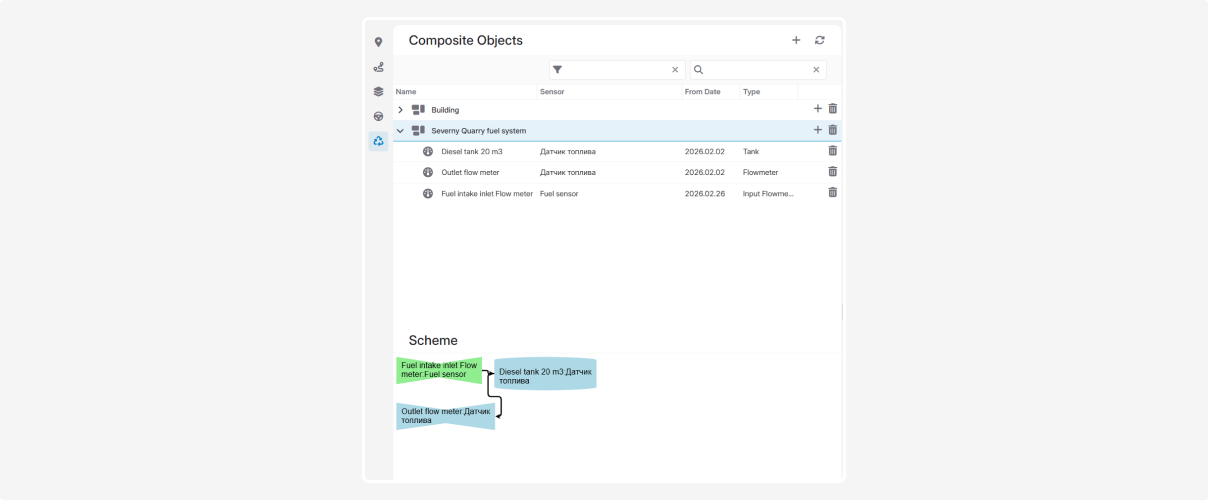
The module is useful in the following scenarios:
— when using a tanker truck with multiple compartments
— when operating a stationary fuel station or oil depot
— when fuel intake, storage, and dispensing must be tracked within one unified structure
In this module, you can:
— create and configure composite objects
— add elements (objects) and sensors to them
— use them in reports and monitoring for fuel calculations
1. Before creating a composite object, make sure that the following are already configured in the system:
— the required objects (vehicles, tanks, and other elements that will be included in the scheme)
— the corresponding sensors
All objects and sensors must be added and properly configured in advance — only then can they be combined into a composite object.
2. Go to Main → Composite objects
3. Click the add button
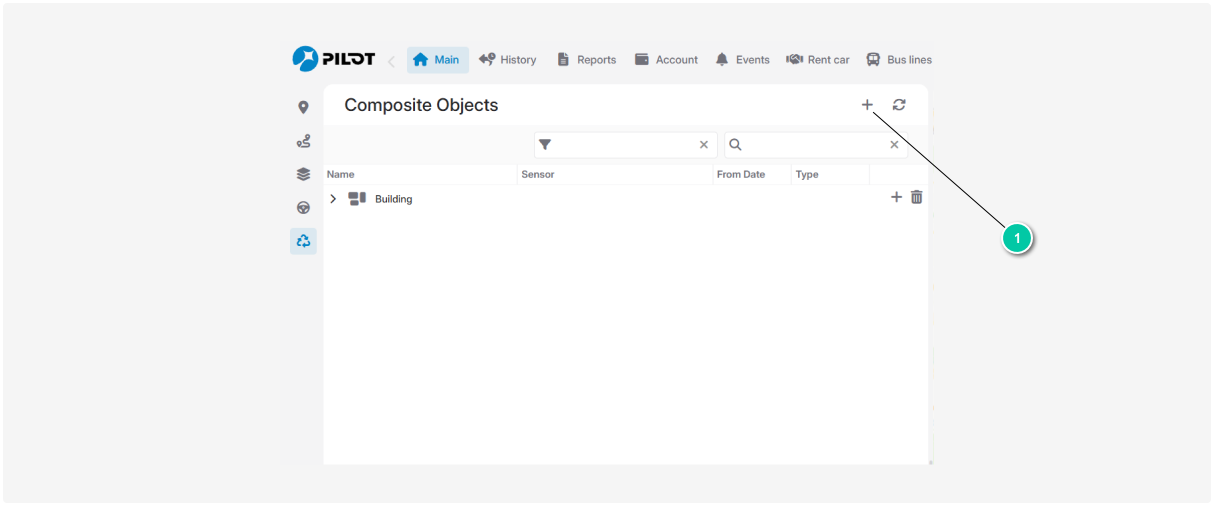
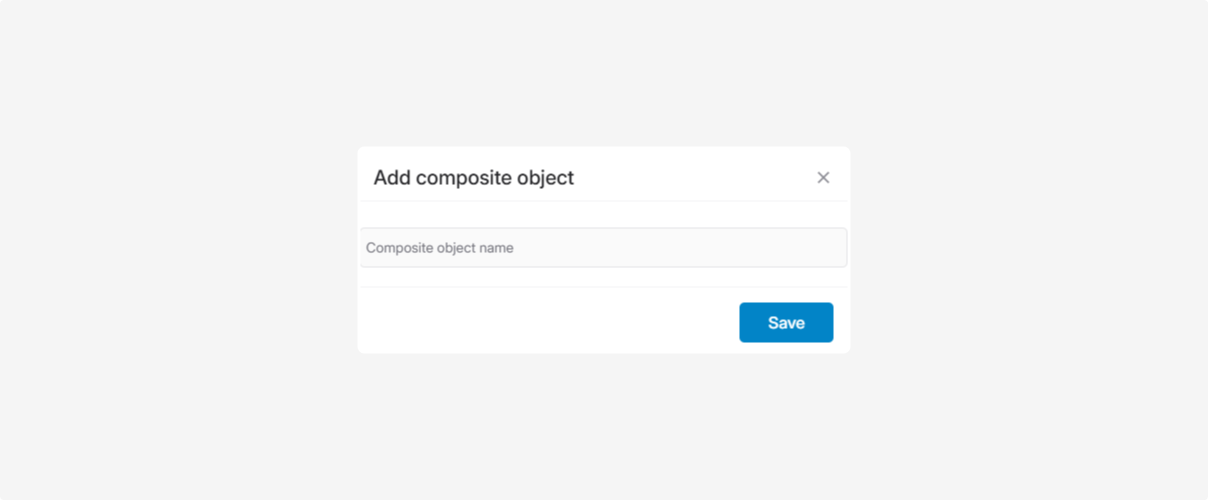
4. Enter the name of the composite object
5. It will appear in the list under the Composite objects tab

1. Open the created сomposite object
2. Click the Add button

3. Specify the following:

— Object — the element of the composite object (select from the list)
— Sensor — select from the asset’s available sensors
— Date — the date from which the element is active
— Element type — its role in the fuel scheme:
-
Tank — a fuel storage container, such as a tanker compartment, stationary reservoir, or generator tank
-
Input flow meter — measures the volume of fuel entering the system, for example fuel intake at an oil depot, filling a stationary tank, or recording fuel received before storage
-
Flow meter — measures the volume of fuel leaving a tank, for example vehicle refueling, dispensing fuel to clients, or supplying fuel to equipment
-
Input tank — an external fuel source, such as a large supplier reservoir

4. Click Save
The element will become part of the composite object and appear in the list. Click on it to display it in the diagram.
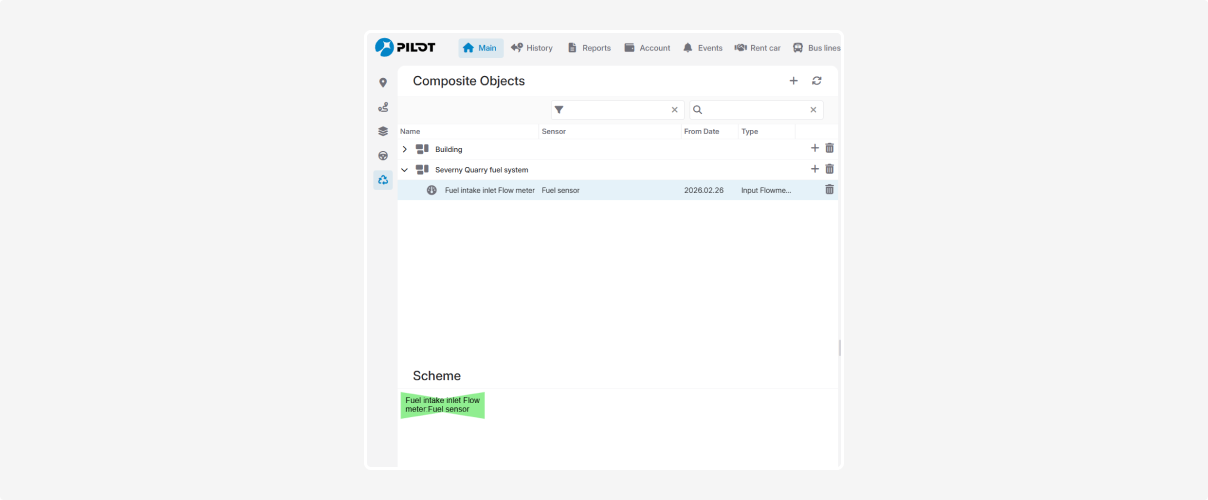
Add all required elements.

Configuring the scheme
At the bottom of the window, you will see the scheme section.

1. Drag elements with the mouse to arrange them as needed.
2. Connect them with arrows — from input to output.
3. Click Save below the diagram
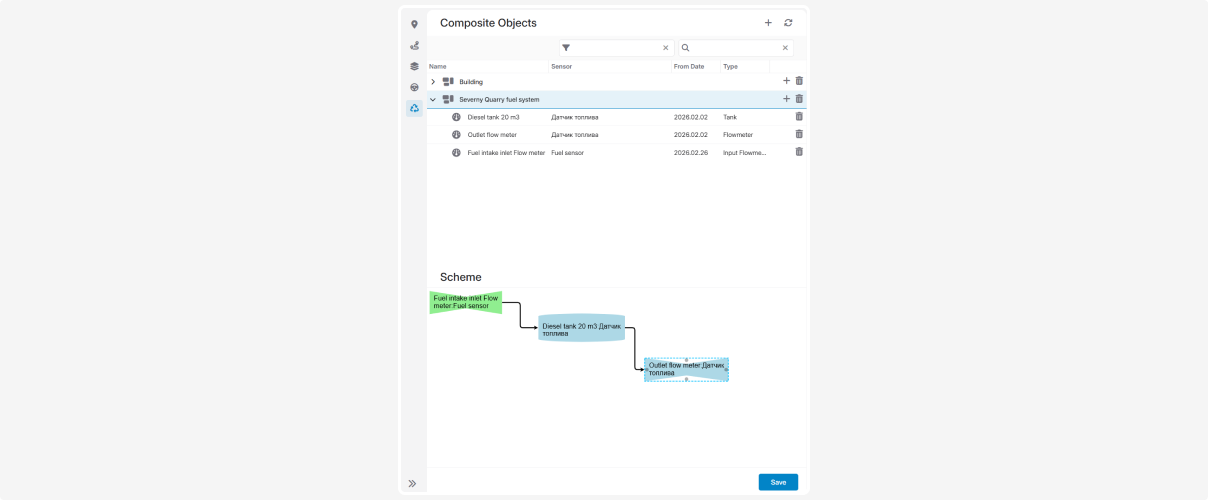
After that, the system will use this scheme in fuel calculations and reports.
Working with the composite objects list

If the list is large, you can:
1 — use the filter
2 — use the Search field
To refresh the list, click the Refresh button  .
.
.To create a new composite object, click  .
.
.To delete an element or an entire composite object, click the Delete button  next to it in the list.
next to it in the list.To edit an object, double-click it in the list — the editing window will open.