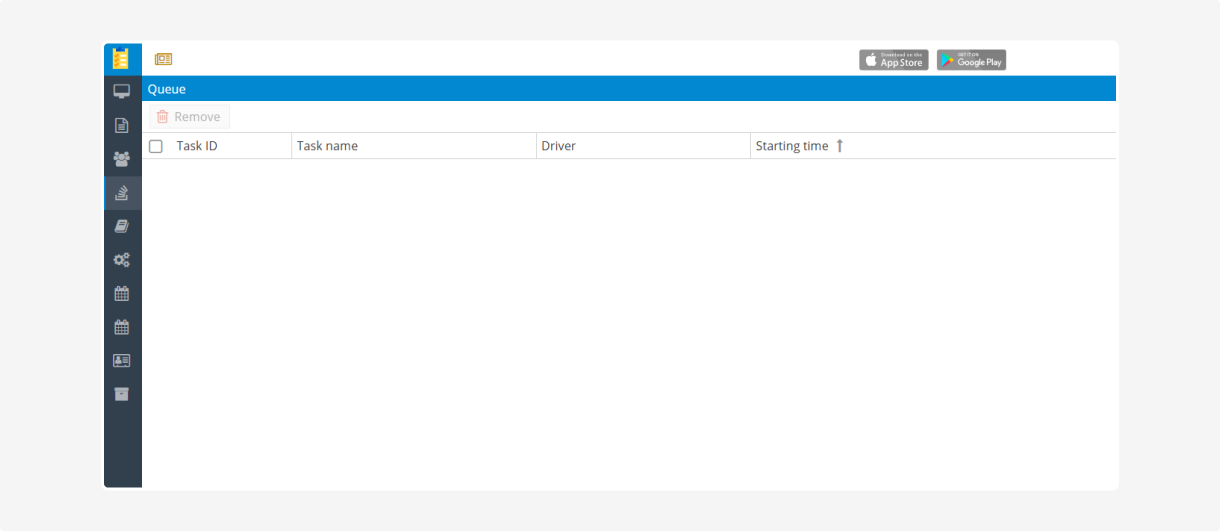
Queue
The Queue section is used to manage tasks that are waiting for confirmation or acceptance by a driver in the mobile app.
How the queue works
When the queue is enabled and a task is assigned to a driver or vehicle, the task may receive the In queue status.
In this status, the task:
-
has not yet been accepted by the driver
-
appears in the Queue section
-
waits for the driver to select or confirm it in the mobile app
-
does not move to an active status until processing begins
After the driver accepts the task, its status changes, for example, to Accepted.
Queue settings
To enable the queue:
1. Open Settings
2. Find the Settings accounts section
3. Select Enable queue for mobile

4. Select the required queue mode
-
Use normal job queue — tasks are processed according to the standard workflow
-
Allow selection of jobs from personal queues — the driver can select a task from the available list
When selecting a task, the driver can accept only one task for execution. The remaining tasks stay in the queue until the driver completes the current task or can move on to the next one.
Queue table
The Queue section may display:
-
Task ID
-
Task name
-
Driver
-
Starting time
-
other task parameters