How to configure control commands
To make the Lock and Unlock buttons work in the app, you need to set up arm and disarm command templates in the PILOT system.

Command templates are configured in the PILOT system:
1. Open the user interface
2. Go to the Main section

3. Click the Commands icon
A window will open where you can create command templates.

How to create a command template
1. Click Add command 
2. Select the vehicle for which the command is being created.
3. Specify the parameters  :
:
:
• Command type — GRPS
• Command method — SMS_VIA_GPRS

4. In the SMS field, enter the command text, for example: setdigout 0 — disarm the vehicle
5. If required, check the HEX box if the command must be sent in HEX format
6. Click Save as template and give it a name
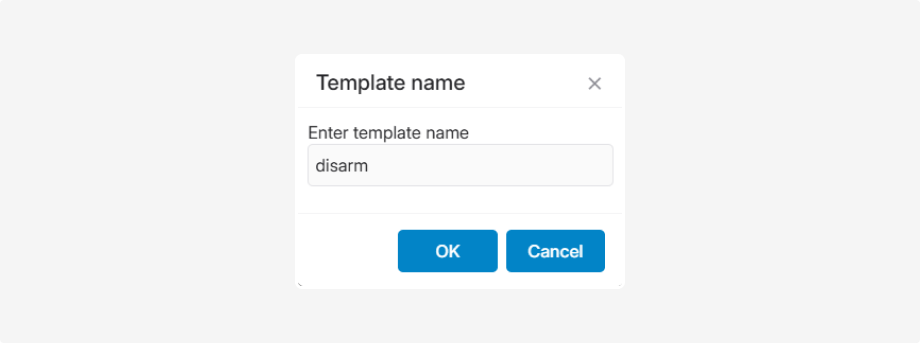
Template names must be exactly:
• arm — set vehicle security
• disarm — disarm vehicle
• get_beacon_ids — retrieve the list of beacons
Names must be lowercase. The app identifies and executes commands based on these exact names.
Examples of commands
Arm (Set security) — arm
|
Device
|
Command template
|
|
Teltonika
|
setdigout 1
|
|
Adm 333
|
BLEOUTPUT 0
|
Disarm — disarm
|
Device
|
Command template
|
|
Teltonika
|
setdigout 0
|
|
Adm 333
|
BLEOUTPUT 1
|
Retrieve beacon list — get_beacon_ids
This command retrieves the list of Bluetooth beacons registered on the device.
|
Device
|
Command template
|
|
Teltonika
|
getparam 1600;1601;1602;1603;1604;1605;1606;1607;1608;1609;1610
|
For the commands to work correctly:
• The device must be online
• A security sensor must be configured in the system — it is required for the app to display the current security status
|
After setting up the command templates, the Lock and Unlock buttons will become active, and you can control the vehicle from the Car condition screen.