How to work with a report
Once the report is created, you will immediately see the results online.

1 — Map
2 — Divider
Interactive map
Some reports include an interactive map to help you visualize report data.
To expand the map area, simply drag the screen divider  .
.
.For example:
In trip reports, you can select a specific record, and the map will display the corresponding route with start and end markers.

In Parkings reports, choose a record and a stop marker will appear on the map. Click it to view detailed information about the parking.

Marker on map

When you finish working with the map, click Clear  in the upper-right corner of the map to remove all displayed data.
in the upper-right corner of the map to remove all displayed data.Some reports support additional parameters. They help you display more data or filter results right when building the report. The set of parameters depends on the selected report type.
Where to set parameters:
-
Open the Reports tab and select the report type
2. A block with additional settings will appear below. Set the needed parameters and click Build report
Types of parameters:
-
Toggles (checkboxes)
These enable or hide extra columns and report elements. To display information — check the box. To hide it — clear the box.
For example, in the Trips and parkings report, additional parameters are available: columns with drivers, vehicle type, and a chart.
If no parameters are selected, the report is built with default settings.
|


-
Numeric parameters
These are used for filtering by values and setting ranges. Enter numbers; the measurement units are shown next to the field (sec, min, temperature, etc.).
If the upper threshold is not needed, in some reports you can leave it empty or set it to 0.
For example, in the parking report, you can specify Minimum time (sec) and, if needed, Maximum time (sec) that will be counted as parking.
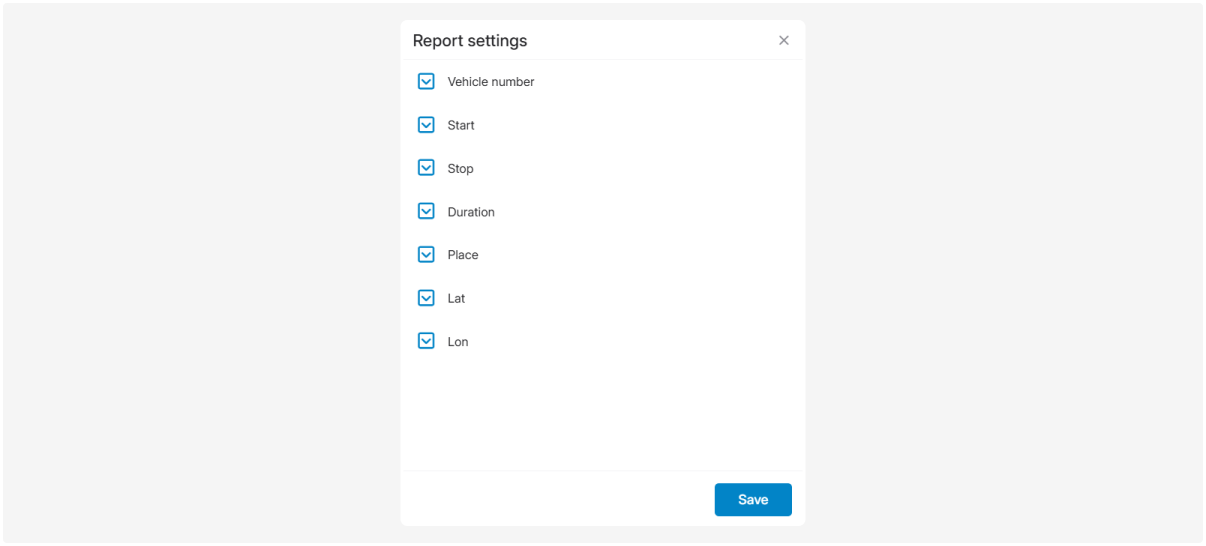
Most reports can be customized:
-
After building the report, click Report settings

2. Check the boxes for the parameters you need — for example, object, geofences, sensors, etc.
3. Click Build report again to refresh the report with your selected parameters
Example
In the Parkings report, all parameters are shown by default.


But you can choose specific settings to get a report only for the parameters you need. This way, you only see the information that matters to you.


Once generated, a report can be downloaded in CSV, Excel, or PDF format, or printed. Click the button for the required format or the printer icon at the bottom of the report.

Downloading as PDF
When you select PDF, the PDF export window opens, allowing you to configure the page size and orientation:

1. In Page size, select A5, A4, A3, or A2

2. In Orientation, select:
-
Portrait — vertical page layout
-
Landscape — horizontal page layout

3. Click Export to download the file
For reports with many columns, choose landscape orientation and, if needed, a larger page size to make the table easier to read.
You can save a finished report in a convenient format — CSV, Excel, or PDF — or send it directly to print for further use.
Report scheduler
Use the report scheduler to set up automatic delivery of reports to your email.
The report scheduler is a tool that automatically sends reports according to a schedule.

How the report scheduler works:
-
Choose which reports you want2. Select the time when you want to receive them3. Reports will automatically arrive in your email inbox
For more details on setting up the scheduler, see this article.