Partner menu
How to open the menu
1. Go to the Partners tab
2. Find the required partner in the list
3. Right-click on the partner’s row — the action menu will open

The available options depend on the user’s permissions.
Administrators see the full set of functions. Partners only see the actions available to them. Unavailable options are displayed in gray.
Main menu actions
Edit
Opens the partner card to modify key information: name, contact details, tariff, currency, administrator account, and other settings.
Available to administrators only.

Accounts
Opens the list of this partner’s Accounts.
Here you can review active and completed contracts, see connected vehicles, and check applied tariffs.

Video devices
Opens the list of connected cameras and DVRs assigned to the partner.
Payments
Opens the payment history in a new tab. You can review payment dates, amounts, and descriptions.
Write-offs
Displays the history of deductions from the partner’s balance (subscription fees, services, and other charges).
Add payment
Manually credit funds to the partner’s balance.

1. Fill in the form:
• Contract — select the contract the payment applies to
• External Payment ID — payment reference from your accounting system
• Invoice Number (optional) — specify if the payment relates to a specific invoice
• Payment Type — select from the list
• Amount — enter the amount to be credited
• Payment Date — actual date funds were received
• Description — short comment
2. Click Save — the amount will be added to the partner’s balance and recorded in the payment history.
Add write-off
Manually deduct funds from the partner’s balance.

1. Fill in the form:
• Contract — select the contract
• External Write-off ID — transaction or document number from your accounting system
• Quantity — number of service units
• Write-off Type — select from the list
• Amount — amount to deduct from the partner’s balance
• Write-off Date — service date or adjustment date
• Description — short comment
2. After verifying the data, click Save — the amount will be deducted and reflected in the transaction history.
Login in
Log in as the partner (using their account), for example, to check settings or provide assistance.
Payment reminder
You can create and send a notification to the partner about an upcoming or overdue payment.

The message includes:
— outstanding amount
— contract number
After applying the template, the partner will see a notification such as:
“You need to pay the outstanding subscription fee in the amount of … Otherwise, all objects will be disconnected from monitoring starting from the 1st day of the next month.”
Postpaid (light) message
Postpaid settings are configured at the account level.

You can:
• select the contract
• specify the amount due
• set the payment deadline
• define the possible suspension date/time
• enter the notification text
The message reminds the partner about payment and warns about possible service restrictions.
Prepaid message
You can send a notification to a prepaid partner, for example, reminding them to top up their balance.
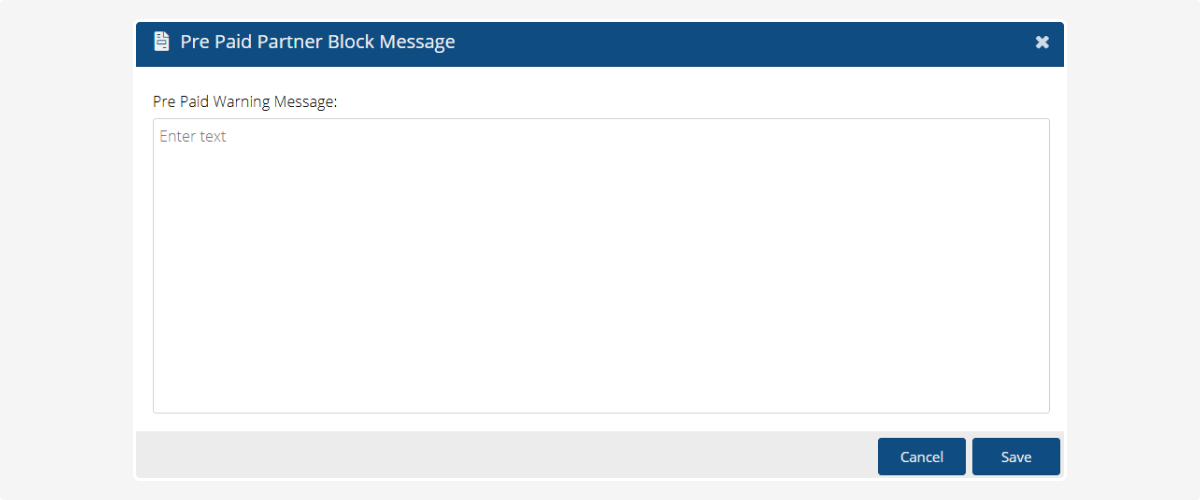
If the balance becomes negative:
• 5 days before the estimated zero balance date, a warning will appear upon login to the admin panel
• the calculation is based on the average daily write-offs
• after 5 days, access to the admin panel is blocked until the balance becomes positive again
If a blocking calculation error appears
This means:
1. A vehicle has a tariff in a different currency.
The system cannot correctly calculate the blocking date if write-offs are in different currencies.
Solution:
Log in as an administrator, open the corresponding AgentID, and assign the correct pricing plan.
2. The contract contains incorrect tariffs.
To fix this:
1. Open Accounts and right-click to open the context menu
2. Select Finance → Incorrect price
3. Select the required objects and update pricing in bulk
Delete
Remove the partner from the system (available to administrators only).