Tires
In this tab, you can track the condition of vehicle tires — monitor pressure and temperature indicators, as well as manage information about axles and tires.
In this article:
-
What you see on the screen
-
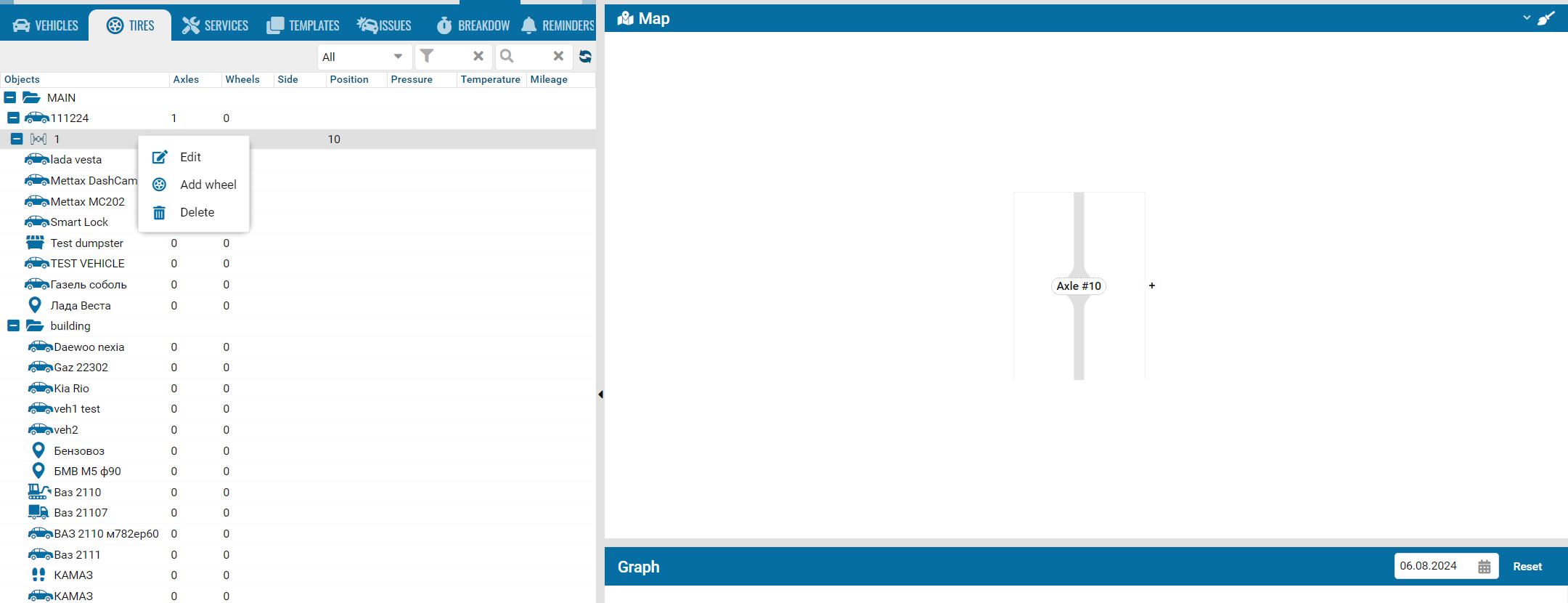
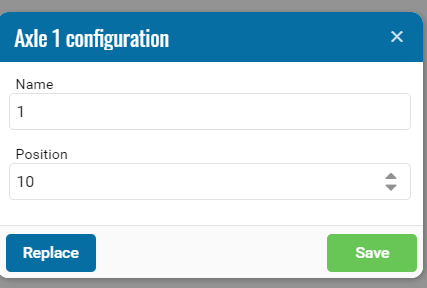
How to add an axle
-
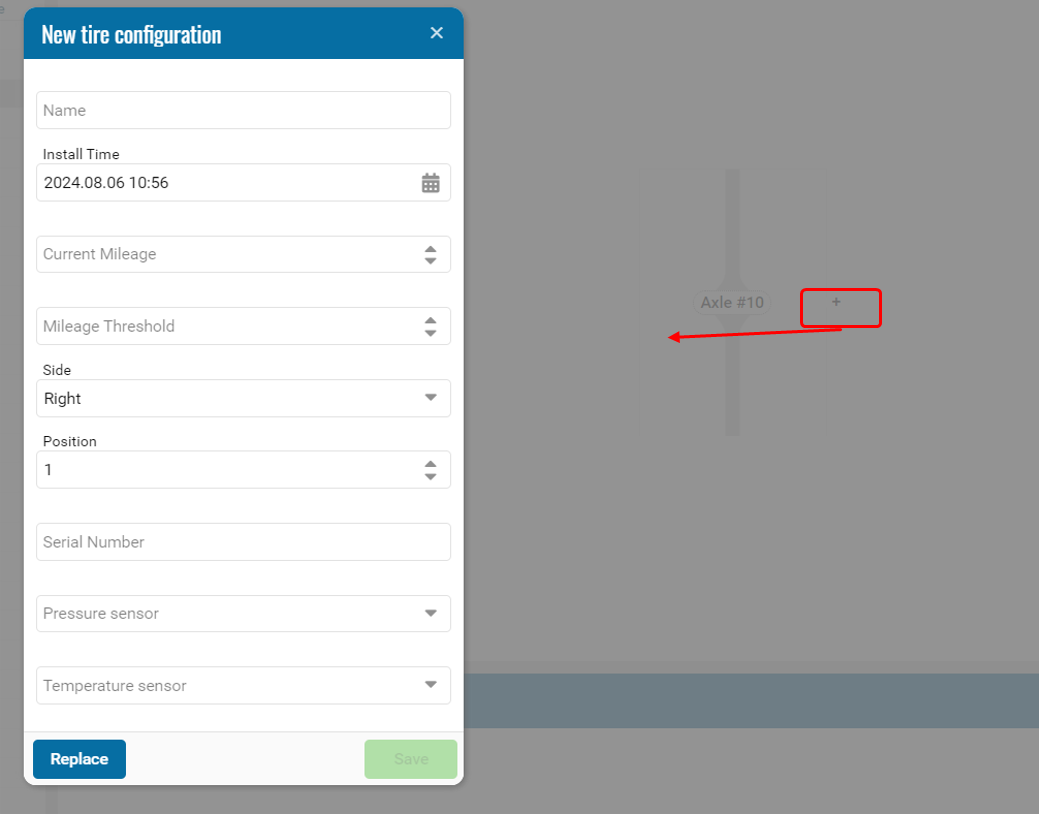
How to add a tire
Tab overview
When you open the Tires tab, you will see three main sections:
Object list
Here you’ll find all vehicles you are monitoring.
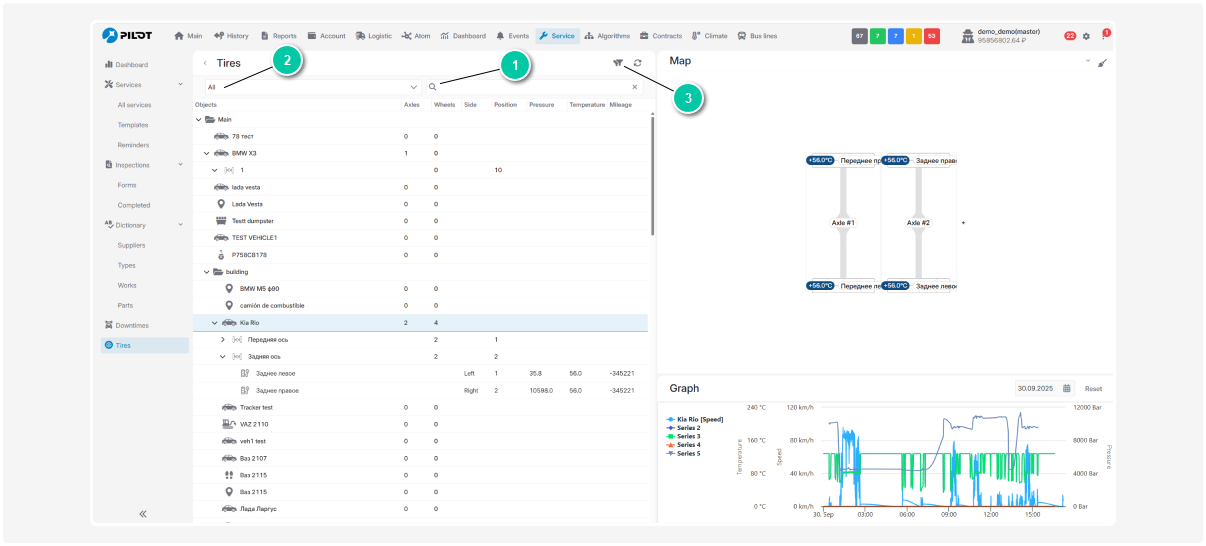
You can quickly find the needed object using:
1 — Search in the list. Enter a name or number, and the search will highlight results
3 — Filters in the table header – conditions include:
-
Contains
-
Equals
-
Not equals
-
Empty / Not empty
-
Greater than / Greater or equal
-
Less than / Less or equal
Axle and tire layout
When you click an object in the list, you will see its axle and tire layout — a visual diagram where you can:
-
Add axles and tires
-
See where each tire is installed
-
Track the condition of every tire
Parameter graph
This graph shows the history of indicators for the selected object:
-
Vehicle speed
-
Tire temperature
-
Tire pressure
You can select a date to see how values changed over time — this helps spot overheating or pressure drops early.