Calendar
The Calendar displays all tasks in a schedule format and helps you plan work by date.
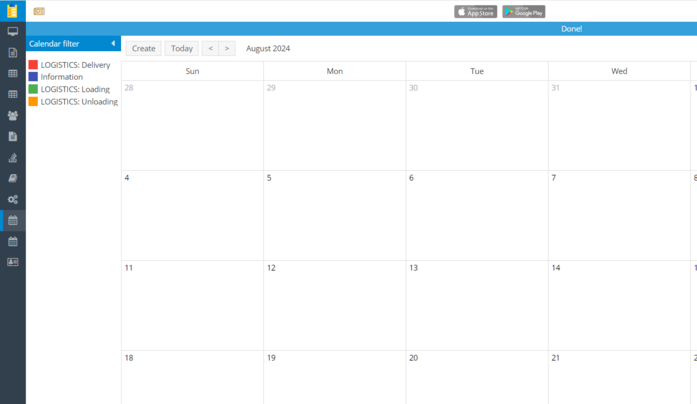
Calendar layout
At the center of the screen, you’ll see the calendar grid. You can switch between different view modes:

-
Day — a detailed view of tasks for a specific day
-
Week — an overview of all tasks for one week
-
Month — a high-level overview of tasks for the entire month
Each calendar cell shows tasks with their time and task ID.
On the left, you’ll find filters that let you choose which task types are displayed in the calendar. For example, you can show only logistics, delivery, loading, repair, or other task types. Each task type is displayed in its own color for easier visual navigation.
Main buttons and actions:
-
Create — create a new task directly from the calendar
-
Today — return to the current day
-
Arrow buttons
 — move to the previous or next period
-
Day / Week / Month toggles — switch the calendar view scale
-
Search by Task ID — enter the task number in the search field to find it in the calendar and click

-
Settings icon
 — opens additional calendar display options

How to create a task from the calendar
1. Click on the desired day in the calendar grid
2. A new task creation window will appear

3. Fill in the required task details
4. Click Send to save and start the task
Calendar V2
Calendar V2 is a scheduling view designed for managing tasks assigned to vehicles. In this version, you can clearly see which task is assigned to each vehicle on a specific day.

Calendar structure:
-
The left column displays a list of all vehicles used to perform tasks
-
The top row shows days of the week with dates
-
This allows you to see tasks assigned to each vehicle for each day in a single row
-
Calendar cells display tasks assigned to a specific vehicle on the selected day

Main actions and controls:
-
Refresh — reload the calendar and fetch the latest task updates
-
Settings — open additional calendar display settings
-
Arrow buttons
 — scroll forward or backward to view tasks on future or past days
To view or edit a task, double-click the corresponding cell. The task card will open, allowing you to modify all required parameters.
