Display settings template
A template allows you to transfer display settings from one account to another. This is useful when creating accounts with similar settings or configuring multiple partner accounts: you can export the required settings to a file and reuse them later.
Only users with the Master role can export and upload templates.
|
The buttons for exporting and uploading display settings templates are available on every tab under Settings account.

A template can include settings from the Personalization and Map & Geocoding tabs, including:
-
List of available reports (Reports list)
-
Unit system (System of measurement)
-
General display settings (Global)
-
Address format (Geocoding)
-
Display of events on the map in history (History)
-
Tooltip contents (Tooltip items)
Exporting a template
1. Open Settings account and select any tab, such as Staff and groups
2. Click the download settings icon 

3. In the Download user settings window, select the settings to include in the template

4. Click Export
The template file is saved to your computer. You can use it to transfer the selected settings to another account.
Uploading a template
Before uploading a template, make sure you have opened the account to which you want to apply the settings.
1. Open Settings account and select any tab, such as Staff and groups
2. Click the upload template icon 

3. In the Upload user settings window, click Browser and select a previously saved file
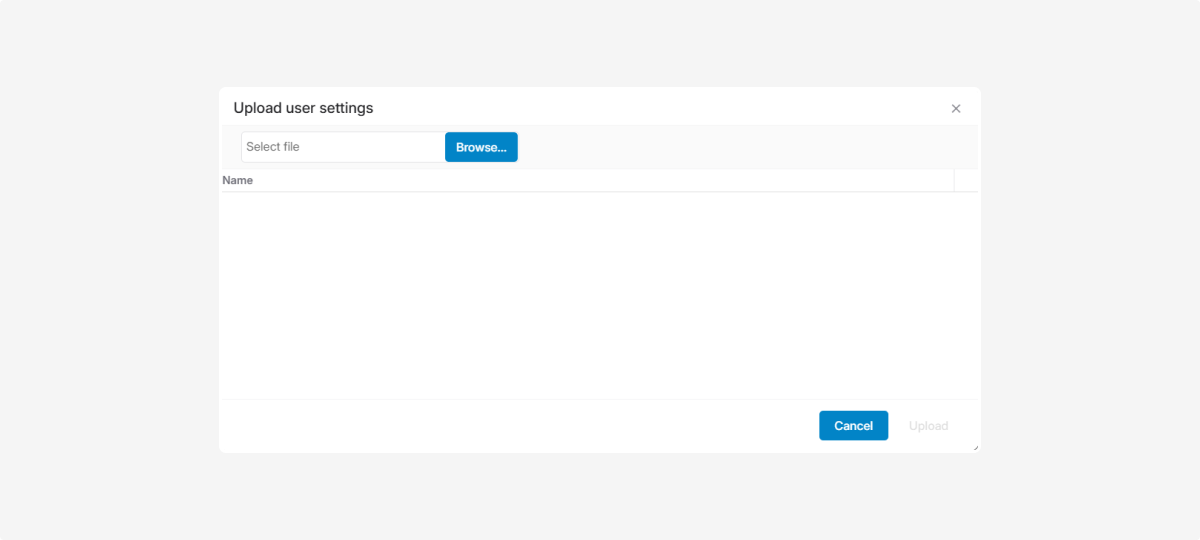
4. Click Upload

5. When the upload is complete, refresh the page.
The settings included in the template are applied to the selected account.