Navigation menu
The navigation menu helps you find the tools you need and move between PILOT sections.
It has two levels: the main menu on the top panel and the selected section’s menu on the left side of the screen.

Main menu

Located on the top bar and contains the system’s main sections: Online, Reports, History, and others.
The set of sections in the main menu depends on the modules enabled for your account.
|
You can reorder sections on the top bar by dragging them. This lets you place frequently used sections first for quick access.
Section menu
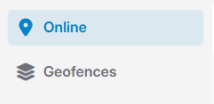
Displayed on the left side of the interface and changes depending on the section selected in the main menu. Contains tabs for working with detailed information and tools for the current section.
For example, when you select the Main section in the main menu, the left-side menu shows corresponding tabs with more in-depth information for that area.
Managing the section menu view
-
Full view — shows icons and the names of all tabs
-
Compact view — collapses to icons only, freeing up more space for the main content

To switch between modes, click the arrow at the bottom of the menu.
 A left arrow collapses the menu to icons.
 A right arrow expands it to show all tab names.
How to use the navigation menu
-
Select the desired section in the main menu on the top panel
2. Open the relevant tab in the section menu on the left
3. Work with the information or perform actions on the page that opens