Excessive idling report
The Excessive idling report is designed to monitor vehicle idling periods. It allows you to determine when and where idling occurred, how long it lasted, which driver was assigned to the vehicle, and how much fuel was consumed during the period.
How an idle event is detected
An idling period is recorded when a vehicle remains stationary longer than the permitted idle time configured in the object settings.
The permitted duration is specified in the Idle field in the object card. If necessary, you can enable ignition monitoring. In this case, idling is recorded only when the vehicle remains stationary while the ignition is on.

1 — Configure the permitted idle time
2 — Enable ignition monitoring
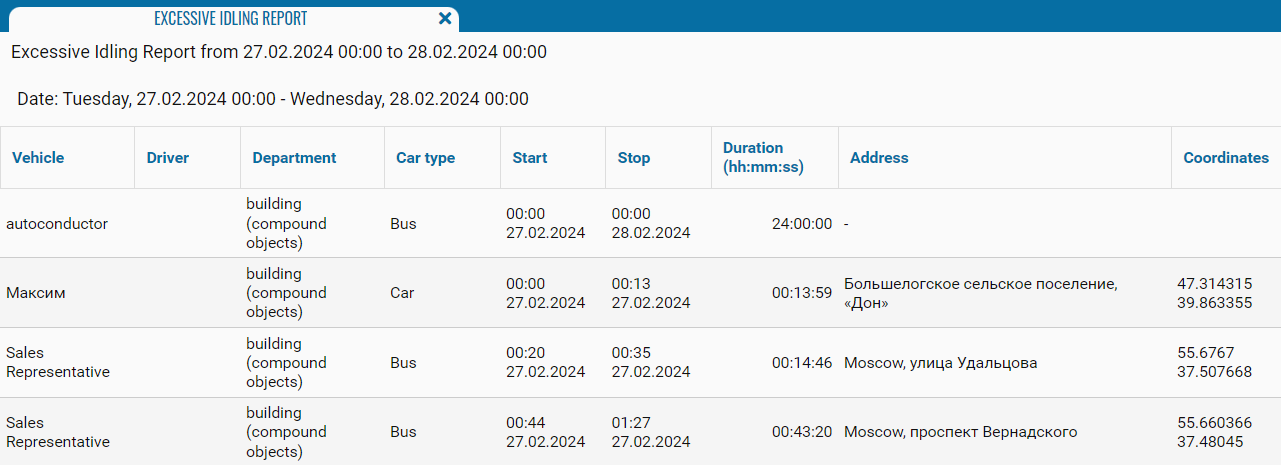
What the report shows
-
Vehicle — the name or identification number of the monitoring object
-
Driver — the driver assigned to the vehicle or identified by the system, for example, using an iButton
-
Department — the group or folder to which the vehicle belongs
-
Car type — the vehicle type, for example, a car or truck
-
Start — the date and time when the idling period began
-
Stop — the date and time when the idling period ended
-
Duration (hh:mm:ss) — the idling duration, calculated as the difference between the start and stop times
-
Address — the address where the vehicle was located during the idling period
-
Coordinates — the latitude and longitude of the idling location
Excessive fuel consumption
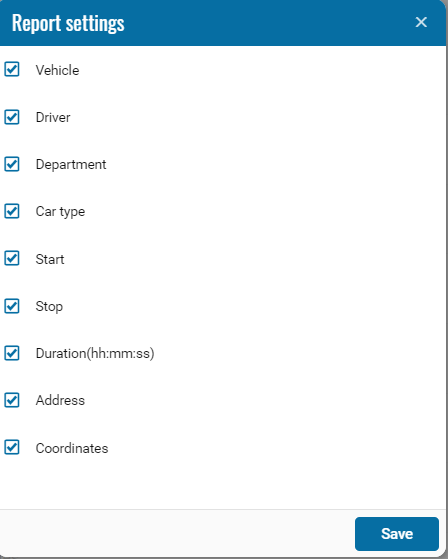
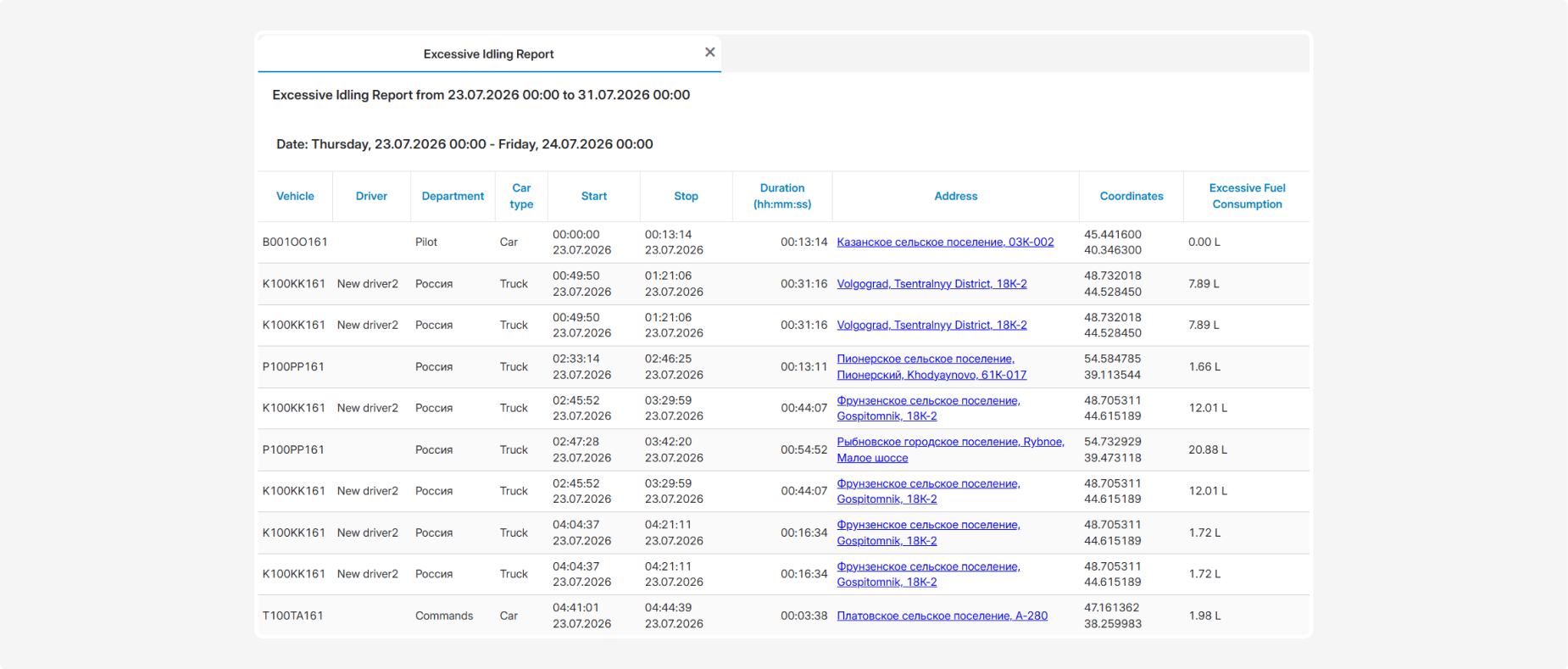
Before generating the report, you can select the Excessive Fuel checkbox. If a fuel-level or fuel-consumption sensor is configured for the object, an additional column appears in the report:
-
Excessive fuel consumption — the amount of fuel consumed by the vehicle during the idling period

Filter by drivers
When the On driver option is enabled, an additional Drivers panel opens next to the object list.

1 — Enable the driver filter
2 — Select a driver from the list
In this panel, you can select one driver, multiple drivers, or an entire driver group. The report will display only events associated with the selected drivers.